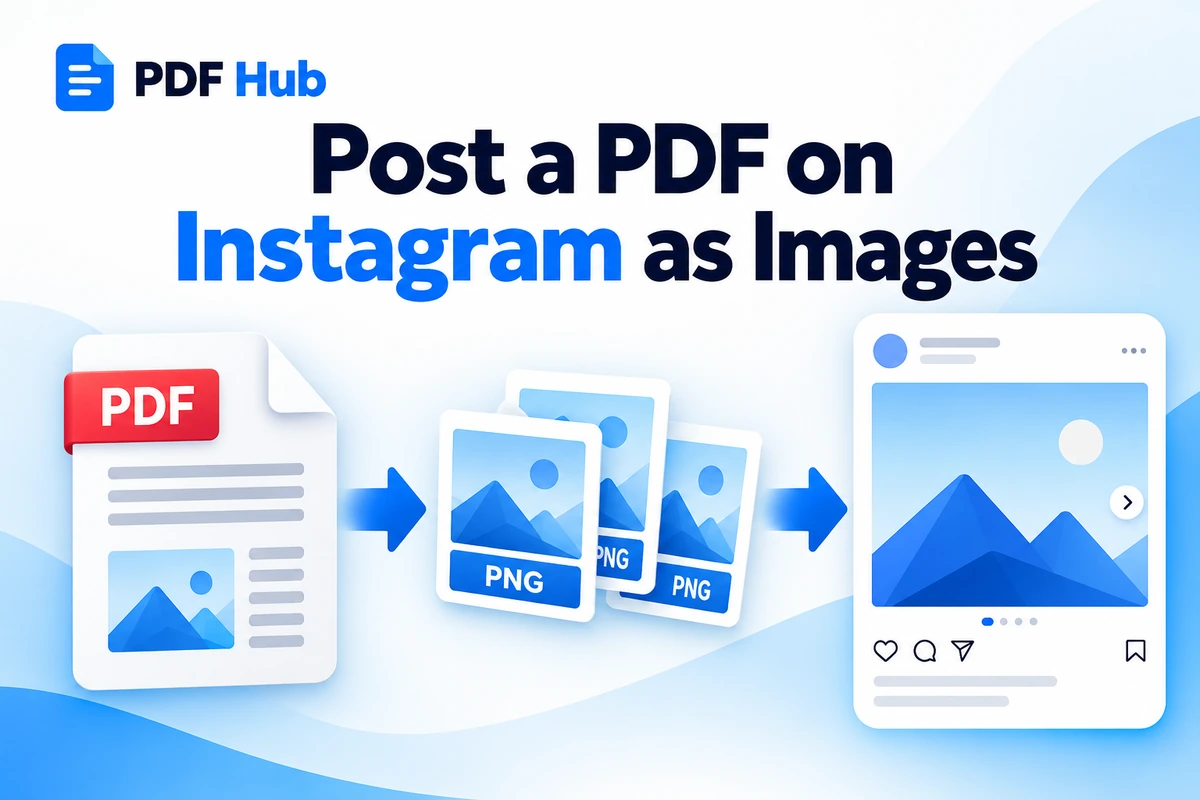
PDF files are useful for brochures, menus, reports, portfolios, presentations, and other documents that need to keep their original layout. But when you want to share that content on Instagram, a PDF is not a practical post format.
The simple workaround is to convert the PDF pages into PNG images. You can then review the images and upload the pages you want to share just like normal photos.
With PDF Hub, every page of a PDF can be converted into a separate PNG image directly in your browser, with the results downloaded together in a ZIP archive.
How to Convert a PDF for Instagram
- Open the PDF Hub PDF to PNG tool.
- Select the PDF file you want to share.
- Click Convert PDF.
- Wait while the pages are converted.
- Download the ZIP archive containing the PNG images.
- Extract the ZIP file on your computer or phone.
- Review the images and select the pages you want to share.
Each page of the original PDF becomes a separate PNG image, so a multi-page document can be turned into a sequence of individual images.
Why Convert a PDF to PNG?
A PDF is a document format, while PNG is an image format. Converting a PDF page to PNG creates a visual copy of the complete page, including its text, images, graphics, colors, and layout.
This can be useful when you want to share the appearance of a document rather than edit its contents. Common examples include:
- flyers;
- restaurant menus;
- product sheets;
- event posters;
- portfolio pages;
- infographics;
- presentation pages;
- simple reports.
If you want a more general explanation of the conversion process, see How to Convert PDF to PNG Online.
What Happens to a Multi-Page PDF?
PDF Hub converts every page of the uploaded PDF into its own PNG file. For example, a four-page PDF produces four separate images:
page_1.png
page_2.png
page_3.png
page_4.png
The images are packaged together in a ZIP archive for easier downloading. After extracting the archive, you can decide which pages you actually want to share. You do not have to use every converted page.
What If You Only Need One or Two Pages?
If the PDF contains many pages but you only want to share one or two of them, separate the pages you need before converting the document.
Use the PDF Hub Split PDF tool to create a smaller PDF containing the relevant pages, then convert that PDF to PNG.
This is especially useful for large reports, catalogs, presentations, or documents where only a small section is relevant. For a step-by-step guide, see How to Extract Pages From a PDF Online.
Check the Images Before Posting
Always open the converted images before sharing them. Check that:
- the text is readable;
- important content is not too close to the page edges;
- the pages are in the correct order;
- graphics and logos look clear;
- you are not accidentally sharing a page that should remain private.
A document designed for printing can contain much smaller text than content designed for a phone screen. A PDF page may look perfectly readable on a computer but become difficult to read when viewed as a social media image.
Should You Convert the PDF or Take a Screenshot?
Taking a screenshot of a PDF page can work, but it may also capture browser controls, viewer elements, unwanted margins, or a lower-resolution version of the page.
Converting the PDF directly to PNG creates a cleaner image of the complete page and is usually more consistent when you need several pages from the same document.
What If the PDF Is Too Large?
The current PDF Hub PDF to PNG tool accepts one PDF file at a time, with a maximum upload size of 24 MB and a maximum document length of 50 pages.
If the PDF is larger than the upload limit, try reducing its size first with the Compress PDF tool. If the document contains many pages but you only need a few of them, splitting or extracting the relevant pages first can also reduce the amount of content you need to convert.
Are the PNG Images Editable?
The converted PNG files are images. The visible text becomes part of the image and is no longer normal selectable or editable document text.
If you need to edit the actual text rather than share a visual copy of the page, use the PDF to Word tool instead.
Are Uploaded PDF Files Stored?
Uploaded files are used only to perform the requested PDF operation and are automatically deleted from the processing server after the request is completed.
PDF Hub does not require an account to use the PDF to PNG converter. As with any online file-processing service, do not upload confidential or restricted documents when you are not permitted to process them through a third-party service.
Frequently Asked Questions
Can I post a PDF directly as a normal Instagram image post?
A PDF is a document rather than an image file. Converting its pages to PNG gives you standard image files that are more suitable for an image-based post.
Can I convert every page of a PDF to an image?
Yes. PDF Hub converts every page in the uploaded PDF into an individual PNG image.
Can I convert only one PDF page?
The PDF to PNG tool converts the complete uploaded document. If you only need one page, extract or split that page first and then convert the resulting PDF.
Does converting a PDF to PNG change the layout?
The complete PDF page is rendered as an image, so the visual layout of the page is preserved.
Can I edit the text after converting the PDF to PNG?
Not as normal document text. The entire page becomes an image. If you need editable text, convert the PDF to Word instead.
Do I need an account?
No. PDF Hub does not require registration to use the PDF to PNG tool.
What is the maximum file size?
The current PDF Hub PDF to PNG tool accepts PDF files up to 24 MB and documents containing up to 50 pages.
Turn Your PDF Pages Into Shareable Images
If you have a flyer, menu, portfolio, presentation, report, or another PDF that you want to share visually, converting its pages to PNG is a simple solution.
Open the PDF Hub PDF to PNG tool, upload your PDF, convert the pages, and download the PNG images in one ZIP archive.