
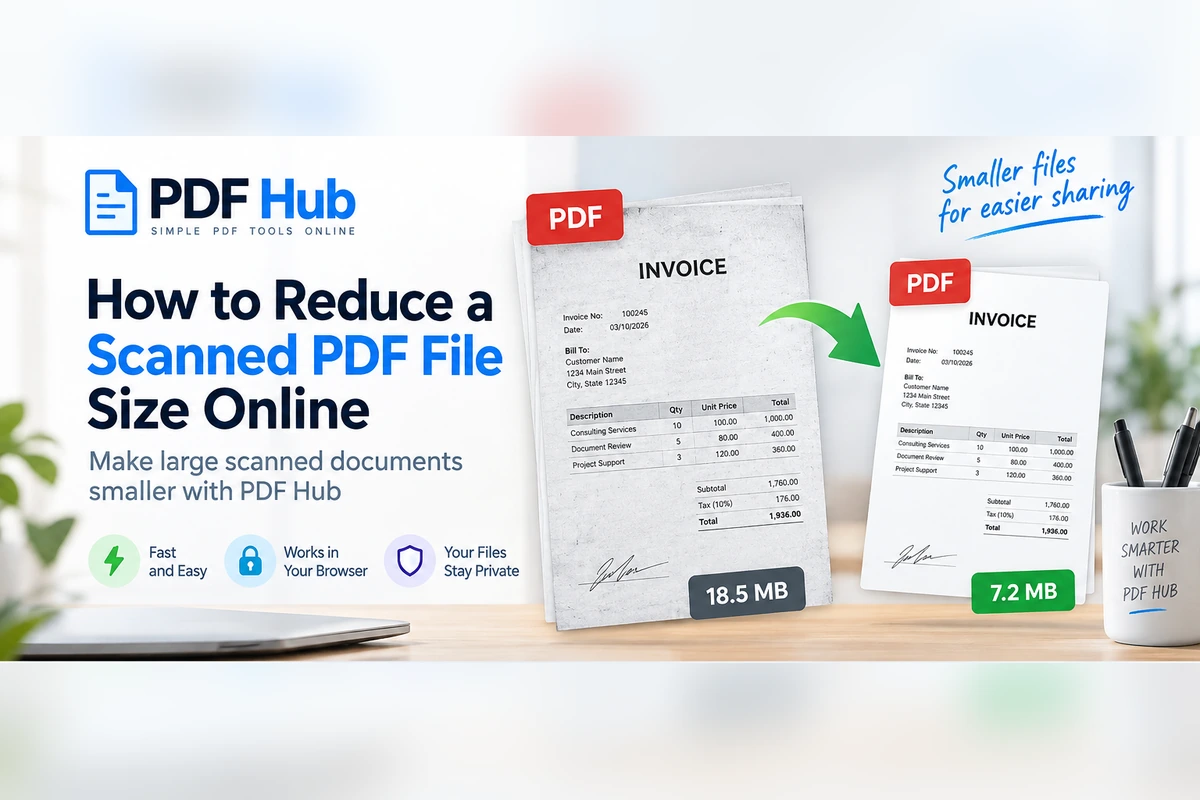
Scanned PDF files can become surprisingly large.
A document with only a few pages may take up many megabytes if every page is stored as a high-resolution image. This is common with scanned contracts, receipts, invoices, forms, reports, certificates, manuals, and archived paper documents.
Large scanned PDFs can be inconvenient to email, upload, store, or share.
With PDF Hub, you can use the Compress PDF tool to reduce the file size directly in your browser without installing additional software.
In this guide, we will explain why scanned PDFs are often large, how to compress them, what quality changes to watch for, and what to do if the file is still too big.
How to Compress a Scanned PDF with PDF Hub
The basic process is simple:
- Open the Compress PDF tool.
- Select your scanned PDF or drag it into the upload area.
- Start the compression process.
- Wait while PDF Hub processes the file.
- Download the compressed PDF.
- Compare the new file size with the original.
- Open the compressed document and check that the scanned pages remain readable.
Your original PDF remains separate on your device, so you can compare the compressed version with the source file before replacing, emailing, or sharing anything.
Why Are Scanned PDFs So Large?
A scanned PDF is often very different from a normal PDF created from a word processor.
A digitally created PDF may contain text, vector graphics, and relatively small embedded images.
A scanned PDF, on the other hand, may store each page mainly as an image.
For example, a 20-page scanned contract can effectively contain 20 large page images.
File size can increase because of:
- high scanning resolution
- full-color scanning
- detailed photographs
- large page dimensions
- multiple scanned pages
- high-quality image encoding
- backgrounds, shadows, or paper texture captured by the scanner
The more visual information each page contains, the more data may be required to store the document.
Does Scanning Resolution Affect PDF Size?
Yes.
Higher scan resolution usually captures more detail, but it also creates more image data.
A scan intended for archival or printing may therefore be much larger than a scan intended simply for reading on a screen.
For example, a scanned page containing ordinary black text may not need the same level of image detail as:
- a photograph
- a detailed engineering drawing
- an illustrated catalog
- a document containing very small print
If the source PDF was scanned at a very high resolution, compression may be able to reduce the amount of data required to store the pages.
However, the visible result depends on the document, so you should always inspect the compressed copy.
Will Compressing a Scanned PDF Reduce Quality?
It can.
Because scanned PDF pages often contain image data, reducing file size may also reduce some image detail.
This does not necessarily mean the document will become unreadable.
For ordinary scanned documents, the goal is usually to make the file smaller while keeping text and important visual information clear enough for its intended use.
Pay particular attention to:
- small printed text
- signatures
- handwritten notes
- stamps
- barcodes
- QR codes
- identification numbers
- diagrams
- fine lines
- low-contrast text
If these details become difficult to read, the compressed version may not be suitable.
For a broader discussion of balancing size and quality, see How to Reduce PDF File Size Without Losing Quality.
How Much Can a Scanned PDF Be Compressed?
There is no fixed percentage.
The amount of compression depends on how the PDF was created and what it contains.
A large scanned PDF containing high-resolution images may sometimes have more room for size reduction than a document that was already optimized.
On the other hand, some PDFs may already be compressed efficiently and may not become dramatically smaller.
Factors include:
- scan resolution
- image quality
- color depth
- number of pages
- document content
- previous compression
- image format and encoding
The important question is not simply:
How small can I make the file?
A better question is:
How small can I make the file while keeping the document usable?
Check the File Size Before and After Compression
It is useful to compare the original and compressed file sizes.
For example:
Before: 18.5 MB
After: 7.2 MB
This tells you whether compression made a meaningful difference.
But file size alone is not enough.
A smaller file is only useful if the content still meets your needs.
After downloading the compressed PDF, open it and check several pages at normal zoom as well as any pages containing important fine detail.
Check Readability After Compression
This step is especially important for scanned PDFs.
Open the output file and inspect:
- body text
- headings
- signatures
- tables
- numbers
- dates
- stamps
- handwritten additions
- fine print
If the document contains important legal, financial, technical, or identification information, check those sections carefully.
Do not permanently delete the original PDF until you are satisfied with the compressed version.
Compressing Scanned PDFs for Email
One of the most common reasons to reduce a scanned PDF is email.
Scanned documents such as contracts, certificates, reports, and application forms can easily exceed attachment limits.
Start by compressing the file with Compress PDF.
Then:
- check the resulting file size
- open the compressed PDF
- confirm that all important content is readable
- attach the smaller file to your email
If your main goal is email delivery, see our dedicated guide: How to Compress a PDF for Email Online.
What If the Scanned PDF Is Still Too Large?
Compression may not always be enough.
A document containing many high-resolution scanned pages may still be too large for your intended use.
In that case, you have several options.
Remove Pages You Do Not Need
A scanned document may contain blank pages, duplicate scans, cover sheets, or pages that are not relevant to the recipient.
Removing unnecessary pages can reduce the size of the final document.
PDF Hub currently handles this through a split-and-rebuild workflow.
See How to Remove Pages from a PDF Online for the full process.
Extract Only the Important Pages
If you only need a few pages from a large scanned document, you may not need to send the entire PDF.
Use Split PDF to separate the document and keep only the pages you need.
Our guide How to Extract Pages from a PDF Online explains this workflow.
Split the Document into Smaller Files
If every page is required but the complete PDF is too large, splitting the document into separate files may help.
For example, instead of one 80-page PDF, you could create several smaller files if that is appropriate for the recipient.
Use Split PDF to separate the pages.
Share the File Using a Link
If compression would reduce the quality too much, sharing the original PDF through an appropriate cloud or file-sharing service may be better.
This can be useful for:
- high-resolution scans
- archive documents
- technical drawings
- large document packages
- PDFs containing important visual detail
Sometimes preserving quality is more important than achieving the smallest possible file size.
Should You Remove Pages Before Compressing?
Usually, yes.
If you already know that some pages are unnecessary, prepare the final document first and compress it afterward.
A practical workflow is:
Original PDF → remove or extract pages → merge the final document → compress
This avoids compressing content that will not be included in the final PDF.
For example, if a 50-page scanned report contains only 20 pages that need to be sent:
- split the PDF
- keep the required 20 pages
- merge them into one new document
- compress the final PDF
This may produce a much smaller file than compressing all 50 pages.
Should You Reorder Pages Before Compressing?
Yes, if the page order needs correction.
It usually makes sense to prepare the final structure first and compress afterward.
If the scanned pages are in the wrong order, use the workflow described in How to Reorder Pages in a PDF Online.
Once the document has the correct page order, run the final PDF through Compress PDF.
This way, the compressed file is already the exact version you intend to keep or share.
Compressing Scanned Contracts
Scanned contracts can become large because every signed page may be stored as an image.
Compression can make them easier to:
- archive
- upload
- share with colleagues
- store in document systems
However, contracts require extra care.
After compression, check:
- signatures
- initials
- dates
- small print
- handwritten corrections
- stamps
- page numbering
Keep the original version, particularly when the document has legal significance.
Compressing Scanned Invoices and Receipts
Invoices and receipts are another common source of scanned PDFs.
These documents may contain:
- small text
- tax numbers
- invoice numbers
- totals
- payment details
- barcodes
- QR codes
A compressed version should remain clear enough for those details to be read correctly.
If a barcode or QR code is important, verify that it remains usable after compression.
Compressing Scanned Forms
Forms often contain boxes, thin lines, handwritten entries, signatures, and small labels.
After compression, check that:
- field labels remain readable
- entered values are clear
- signatures remain visible
- checkboxes can still be distinguished
- no important fine lines disappear
If the form contains critical information, readability should take priority over reducing the file by a few additional megabytes.
Compressing Black-and-White Scanned Documents
Documents containing mostly black text on a white background may be good candidates for file-size reduction.
However, the actual result depends on how the PDF was originally scanned and encoded.
Even a simple black-and-white document may be large if it was captured at very high resolution or stored inefficiently.
Use Compress PDF and compare the output with the original rather than assuming that every scanned file will shrink by the same amount.
Compressing Color Scans
Color scanned PDFs often require more storage than simple text scans because every page contains more visual information.
Examples include:
- brochures
- certificates
- photo documents
- illustrated reports
- highlighted paperwork
- color-coded forms
Compression may reduce file size, but color images can also reveal quality changes more clearly.
Check photographs, gradients, small colored labels, and other important visual elements before using the compressed copy.
Can PDF Hub Perform OCR on a Scanned PDF?
PDF Hub’s compression workflow should not be confused with OCR.
OCR, or optical character recognition, attempts to recognize text inside scanned images and convert it into machine-readable text.
The Compress PDF tool is intended to reduce PDF file size.
It does not mean that scanned text is automatically converted into editable or searchable text.
If your main goal is text recognition rather than reducing file size, you need an OCR-capable workflow.
Can a Scanned PDF Be Converted to Word?
A scanned PDF and a text-based PDF are not the same.
PDF Hub’s current PDF to Word workflow is primarily intended for PDFs that already contain text.
A scanned PDF may consist mainly of page images and therefore require OCR before its text can be converted meaningfully into an editable document.
If your goal is only to reduce the size of a scanned document, use Compress PDF instead.
Can You Compress a Scanned PDF Without Installing Software?
Yes.
PDF Hub works through a web browser, so you do not need to install a desktop PDF editor just to reduce the file size.
A browser-based workflow can be useful when:
- you only occasionally work with scanned PDFs
- you are using another computer
- you need a quick compression workflow
- you do not have PDF editing software installed
After processing, download the compressed PDF and inspect it locally.
Does Compression Replace the Original Scanned PDF?
No.
The file stored on your device is not automatically replaced.
The compressed version is created as a separate output file.
That means you can compare both versions and decide which one to keep.
For important documents, retaining the original high-quality scan is usually a good idea.
Privacy When Compressing Scanned Documents Online
Scanned PDFs can contain particularly sensitive information.
Examples include:
- contracts
- identification documents
- bank statements
- invoices
- employment records
- customer documents
- medical information
- legal documents
Before uploading any file to an online document-processing service, make sure you are allowed to process the document that way.
PDF Hub processes the uploaded document for the requested PDF operation.
However, your own organizational, contractual, legal, or confidentiality requirements still apply.
For highly sensitive information, follow the security rules appropriate to your situation.
Tips for Smaller Scanned PDF Files
Compression is only one part of keeping scanned documents manageable.
Scan Only What You Need
Avoid scanning blank or unnecessary pages.
Every additional scanned page may increase the final file size.
Use Appropriate Scan Settings
If you control the original scanning process, choose settings that match the purpose of the document.
A file intended only for screen reading may not require the same resolution as a file intended for high-quality printing or archival use.
Avoid Repeated Scanning
Scanning printed copies of previously scanned documents can introduce additional visual noise and reduce quality.
Whenever possible, work from the cleanest available source.
Remove Unnecessary Pages
Use Split PDF to separate the document and exclude pages that do not belong in the final file.
Build the Final PDF Before Compression
Finish removing, extracting, or rearranging pages before compressing the final version.
This gives you one completed document to evaluate.
Keep the Original
Always retain the original until you have verified the compressed copy.
Frequently Asked Questions
Why is my scanned PDF so large?
Scanned PDFs often store each page as a high-resolution image.
A document with many scanned pages can therefore contain much more image data than a normal text-based PDF.
How do I make a scanned PDF smaller?
Upload the document to Compress PDF, process it, and download the compressed version.
Then compare the file size and verify that important text and images remain readable.
Can I compress a scanned PDF online?
Yes.
PDF Hub allows you to compress a PDF through your browser without installing additional desktop software.
Will a scanned PDF always become much smaller?
No.
The amount of size reduction depends on the original document.
Some files have more room for compression than others.
Does PDF compression remove pages?
No.
Compression is intended to reduce file size.
If you want to remove pages, see How to Remove Pages from a PDF Online.
Can I compress only selected pages?
A practical approach is to first extract the pages you need with Split PDF, combine them if necessary with Merge PDF, and then compress the resulting PDF.
Should I compress before or after removing pages?
Usually after.
Prepare the final document first, then compress the completed file.
Can I compress a scanned PDF for email?
Yes.
Compress the file, verify the output, and check whether the resulting size is below your email attachment limit.
See How to Compress a PDF for Email Online for more details.
Can PDF Hub OCR my scanned document?
The current compression workflow is not an OCR workflow.
Compression reduces file size; OCR attempts to recognize text inside scanned images.
Can I reorder a scanned PDF before compressing it?
Yes.
If the pages are in the wrong order, reorganize them first using the process described in How to Reorder Pages in a PDF Online, then compress the final document.
Reduce Your Scanned PDF File Size Online
Scanned PDFs can become large because every page may contain substantial image data.
With PDF Hub, you can use Compress PDF to create a smaller version of the document directly from your browser.
After compression, always check:
- the new file size
- text readability
- signatures
- numbers and dates
- stamps and handwritten notes
- important image details
If the PDF is still too large, consider removing unnecessary pages, extracting only the pages you need, splitting the document into smaller files, or using another appropriate sharing method.
The goal is not simply to create the smallest possible PDF.
The goal is to reduce file size while keeping the scanned document clear enough for its intended use.