
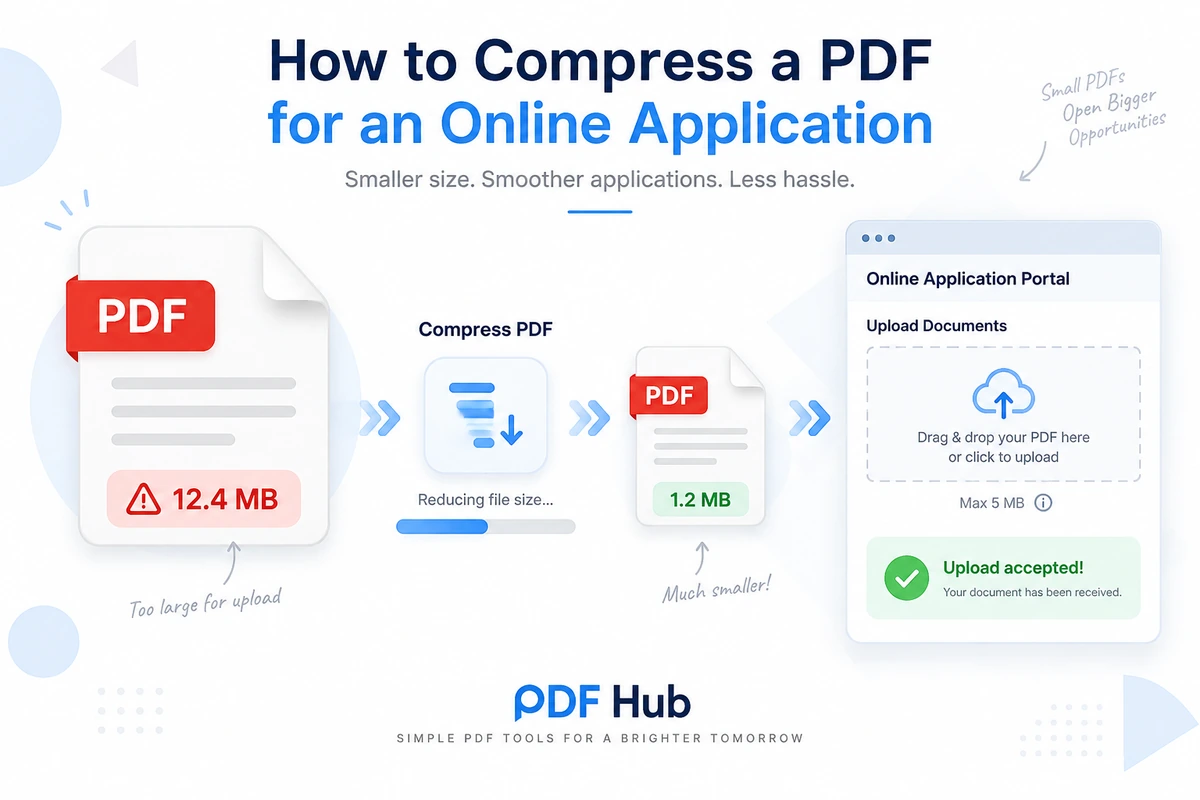
You have completed an online application, prepared all the required documents, and reached the final upload step.
Then the portal rejects your PDF because the file is too large.
This can happen with job applications, university admissions, government forms, visa applications, scholarship submissions, tenders, customer portals, and many other online systems.
PDF files that contain scanned pages, photographs, certificates, signatures, or high-resolution graphics can easily become larger than an upload portal allows.
With PDF Hub, you can use the Compress PDF tool to reduce the PDF file size directly in your browser.
The goal is not simply to create the smallest possible file.
The goal is to create a PDF that:
- fits within the upload limit
- remains readable
- keeps all required pages
- preserves important details
- can be uploaded successfully
This guide explains how to do that safely.
How to Compress a PDF for an Online Application with PDF Hub
Start by checking the file-size requirement shown by the application portal.
Then:
- Open Compress PDF.
- Select the PDF you want to upload.
- Start the compression process.
- Wait for PDF Hub to create the smaller version.
- Download the compressed PDF.
- Check its new file size.
- Open the file and verify that the content remains readable.
- Upload the compressed version to the application portal.
Keep the original PDF until the application has been submitted successfully.
Why Online Application Portals Limit PDF Size
Online systems often set a maximum size for uploaded documents.
These limits can help the system:
- process submissions more efficiently
- reduce storage requirements
- improve upload reliability
- limit excessively large attachments
- keep application workflows manageable
The exact limit varies from one portal to another.
Never assume that a limit you saw on another website applies to your current application.
Always check the instructions beside the upload field or in the application requirements.
Check the Exact Upload Limit First
Before compressing anything, find out what the portal actually requires.
Look for information such as:
Maximum file size:
For example, the portal may display a maximum size next to the upload button.
Accepted format:
Make sure PDF is actually accepted.
Per-file or total limit:
Some systems limit each individual attachment, while others may also limit the total size of all uploaded documents.
Page requirements:
The application may require a complete document rather than selected pages.
Knowing the exact requirement prevents unnecessary compression.
If your PDF is already below the limit, there may be no reason to process it at all.
Check Your Current PDF File Size
Next, compare the size of your PDF with the portal limit.
On Windows, you can usually right-click the file and open Properties.
On macOS, use Get Info.
For example:
Portal maximum: 5 MB
Your PDF: 11.4 MB
You know the file must become considerably smaller before the portal will accept it.
But do not focus only on reaching the exact limit.
It is usually better to leave some margin rather than creating a file that sits directly on the maximum boundary.
Why Application PDFs Become Large
Application documents can become large for several reasons.
Scanned Documents
Certificates, identification documents, transcripts, signed forms, and official records are often scanned.
Each scanned page may contain a full-page image, which can make the PDF much larger than a normal text document.
High-Resolution Images
A PDF may contain:
- passport photographs
- certificates
- diagrams
- portfolio images
- screenshots
- supporting evidence
Large embedded images can significantly increase the file size.
Multiple Documents Combined into One PDF
An application package may include:
- CV
- cover letter
- certificates
- reference letters
- identification
- supporting evidence
Combining all of these into one document can create a large PDF.
High-Quality Export Settings
A PDF created for professional printing may contain much more image detail than an online application actually needs.
Unnecessary Pages
Blank pages, duplicate pages, instructions, or irrelevant sections may also contribute to the final size.
Will Compressing an Application PDF Reduce Quality?
It can, particularly when the PDF contains scanned pages or images.
That is why you should never upload the compressed document without checking it first.
Look closely at:
- names
- dates
- identification numbers
- signatures
- stamps
- certificates
- small text
- tables
- photographs
- handwritten information
- QR codes or barcodes if they are important
A successful upload is not useful if the reviewer cannot read the document.
For more guidance on the balance between size and visual quality, see How to Reduce PDF File Size Without Losing Quality.
Compressing Scanned Documents for an Application
Scanned PDFs often require the most attention.
A university application might include:
- scanned diploma
- transcript
- signed declaration
- certificate
- identification document
A job portal might require:
- signed application form
- scanned qualification
- reference letter
These files may be much larger than ordinary digital PDFs because the pages are stored mainly as images.
Use Compress PDF and then inspect all critical details.
For a dedicated guide, see How to Reduce a Scanned PDF File Size Online.
What If the PDF Is Still Too Large?
Sometimes one compression pass does not reduce the document enough.
Do not immediately assume that the solution is to sacrifice more readability.
First check whether the PDF contains content that does not need to be submitted.
Remove Unnecessary Pages
The document may contain:
- blank pages
- instructions
- duplicate scans
- outdated pages
- unnecessary appendices
If the application does not require them, removing those pages may reduce the file size.
See How to Remove Pages from a PDF Online.
Extract Only the Required Pages
The portal may request only a specific part of a longer document.
For example, it may require one certificate page rather than an entire document package.
Use Split PDF to separate the PDF and keep only the required pages.
For the full workflow, see How to Extract Pages from a PDF Online.
Create a New Application Package
If the required pages are spread across several PDFs, you can build a cleaner final document.
The workflow is:
Split source PDFs → keep required pages → arrange them → merge the final PDF
See How to Combine Selected Pages from Multiple PDFs Online.
After creating the final package, compress that completed PDF.
Should You Compress Before or After Combining Documents?
Usually after.
Imagine you have four source PDFs:
- CV
- certificate
- reference
- supporting document
If you first create the exact final submission package, you only need to compress one completed PDF.
A practical workflow is:
prepare documents → remove unnecessary pages → arrange pages → merge → compress → verify → upload
This gives you a clear final file to check.
Should You Reorder Pages Before Compression?
Yes, if the page sequence needs correction.
For example, your application package may currently contain:
CV → certificate → cover page → reference
but should be:
cover page → CV → certificate → reference
Fix the page order first.
See How to Reorder Pages in a PDF Online.
Then compress the final document.
Preparing a PDF for a Job Application
Job portals may request several PDF documents.
Examples include:
- CV or résumé
- cover letter
- certificates
- references
- portfolio
- identification
- signed forms
Before uploading, check that:
- the correct version is included
- the filename is professional
- unnecessary pages are removed
- the file is within the size limit
- text is readable
- links and contact details remain clear
A compressed PDF should still present your application professionally.
Preparing a PDF for a University Application
University admissions may involve many supporting documents.
You may need to submit:
- transcripts
- diplomas
- certificates
- recommendation letters
- statements
- identification documents
- supporting evidence
Scanned academic documents can be particularly large.
If you compress them, inspect:
- grades
- dates
- signatures
- official stamps
- institution names
- student numbers
- small printed text
Do not prioritize file size over readability.
Preparing a PDF for a Government Portal
Government portals often have strict technical requirements.
Always follow the instructions supplied by the official service.
Before changing the PDF, check:
- required file type
- maximum size
- whether all pages are required
- whether signatures must remain visible
- whether scanned copies are acceptable
- whether the document must remain complete
If the portal requires an official complete document, do not remove pages simply to make the PDF smaller.
Compress the complete document instead.
Preparing a PDF for a Visa Application
Visa and immigration processes may require scanned copies of:
- passport pages
- certificates
- bank statements
- travel documents
- employment records
- signed forms
These documents can contain small details that must remain legible.
After compression, carefully inspect:
- passport numbers
- names
- dates
- stamps
- photographs
- signatures
- account figures
- reference numbers
Keep the original files until the submission process is finished.
Preparing a PDF for a Scholarship Application
Scholarship applications can require several supporting documents.
For example:
- academic records
- certificates
- personal statements
- financial documents
- recommendations
- signed declarations
If the portal requires several separate files, check the size of each document individually.
Do not merge everything into one PDF unless the application instructions specifically request one combined document.
Preparing a PDF for a Tender or Business Submission
Business and tender portals may require large document packages containing:
- company information
- financial records
- certifications
- references
- project documentation
- signatures
- technical information
The final PDF may become very large.
Before compression, make sure you know whether the submission requires:
- one complete PDF
- several separate attachments
- specific page order
- signed sections
- original document structure
Prepare the correct final document first, then compress it.
Use Clear Filenames
A good filename makes the submission easier to identify.
Instead of:
scan000843-final-new.pdf
use something like:
john-smith-cv.pdf
or:
application-supporting-documents.pdf
Follow any filename rules specified by the portal.
Some systems may restrict special characters or very long names.
Do Not Modify the File After Final Verification
Once you have:
- created the correct PDF
- compressed it
- verified readability
- confirmed the file size
that should become your final upload copy.
If you later edit or rebuild the file, check everything again.
A new export may have a different file size or page order.
What If the Portal Still Rejects the PDF?
A file-size error is not the only reason an upload can fail.
If your compressed PDF is below the stated limit but the portal still rejects it, check:
- whether PDF is an accepted format
- filename restrictions
- password protection
- damaged or incomplete files
- total submission size
- page limits
- browser problems
- application-specific rules
Do not keep compressing the document if file size is no longer the problem.
Does PDF Hub Let You Choose an Exact Target File Size?
PDF Hub’s current Compress PDF workflow is designed to reduce the file size.
It does not mean you can enter an exact target such as:
2 MB
and guarantee that the output will have that exact size.
After compression, check the actual output size against the portal requirement.
If the file is still too large, consider whether unnecessary pages can safely be removed or whether the document can be prepared differently.
Can You Compress an Application PDF Without Installing Software?
Yes.
PDF Hub works through a web browser.
You do not need to install a desktop PDF editor simply to reduce the file size.
This can be useful when:
- you are using another computer
- you need a quick upload fix
- you only occasionally compress PDFs
- dedicated PDF software is not installed
After processing, download and inspect the result locally.
Does Compression Replace the Original File?
No.
The compressed result is downloaded separately.
Your original PDF remains available on your device.
This is important for application documents.
Always keep the original until the application has been successfully completed.
For important official documents, retaining the original permanently is often sensible.
Privacy When Compressing Application Documents Online
Application PDFs can contain sensitive personal information.
Examples include:
- home address
- contact details
- employment records
- academic records
- financial information
- identification numbers
- signatures
- passport information
- certificates
Before uploading documents to any online processing service, make sure online processing is appropriate for the information involved.
Follow any privacy, security, employer, institutional, or regulatory rules that apply to your documents.
If an organization requires documents to be processed only through approved systems, follow those requirements.
Final Checklist Before Uploading
Before submitting your PDF, check:
- correct document
- correct version
- accepted PDF format
- file size below the limit
- all required pages included
- correct page order
- readable text
- visible signatures
- clear scans
- correct filename
Then open the final PDF one more time.
Scroll through every page before uploading it.
This takes less time than discovering after submission that the wrong page was missing or unreadable.
Frequently Asked Questions
How do I make a PDF smaller for an online application?
Use Compress PDF to reduce the file size.
Download the result, check its size, and verify that all important information remains readable before uploading it.
Why does my application portal say my PDF is too large?
The PDF exceeds the maximum file size accepted by the portal.
Scanned pages, high-resolution images, and multiple combined documents are common reasons PDFs become large.
Can I compress a scanned application PDF?
Yes.
Scanned PDFs can often be compressed, but inspect important text, signatures, stamps, photographs, and numbers afterward.
See How to Reduce a Scanned PDF File Size Online.
Can I make a PDF exactly 2 MB or 5 MB?
PDF Hub reduces PDF file size, but the current compression workflow does not provide a guaranteed exact target-size setting.
Check the resulting file size after processing.
Should I remove pages to make the PDF smaller?
Only if those pages are genuinely not required.
Never remove required pages from official or complete documents just to satisfy a size limit.
Should I compress before merging application documents?
Usually it is better to prepare the final document first and compress afterward.
That way, you compress only the content that will actually be submitted.
Can I combine selected documents into one application PDF?
Yes.
If the portal requests one combined file, you can extract the required pages and merge them into one new PDF.
See How to Combine Selected Pages from Multiple PDFs Online.
Can I compress my CV for a job application?
Yes.
Make sure text, contact information, and any design elements remain readable after compression.
Will compression affect signatures?
It may affect image quality in scanned documents.
Always inspect signatures after compression.
Can I compress a PDF without Adobe Acrobat?
Yes.
PDF Hub’s browser-based Compress PDF tool does not require Adobe Acrobat or other desktop PDF software.
Compress Your PDF Before Uploading Your Application
A PDF that is too large does not necessarily need to be recreated.
First, check the application’s exact upload limit.
Then use Compress PDF to create a smaller version.
After processing, verify:
file size → pages → text → signatures → scans → filename
If the document is still too large, consider whether unnecessary pages can safely be removed or whether only selected pages are required.
The most important rule is simple:
Make the PDF small enough for the portal without making the application difficult to read.