
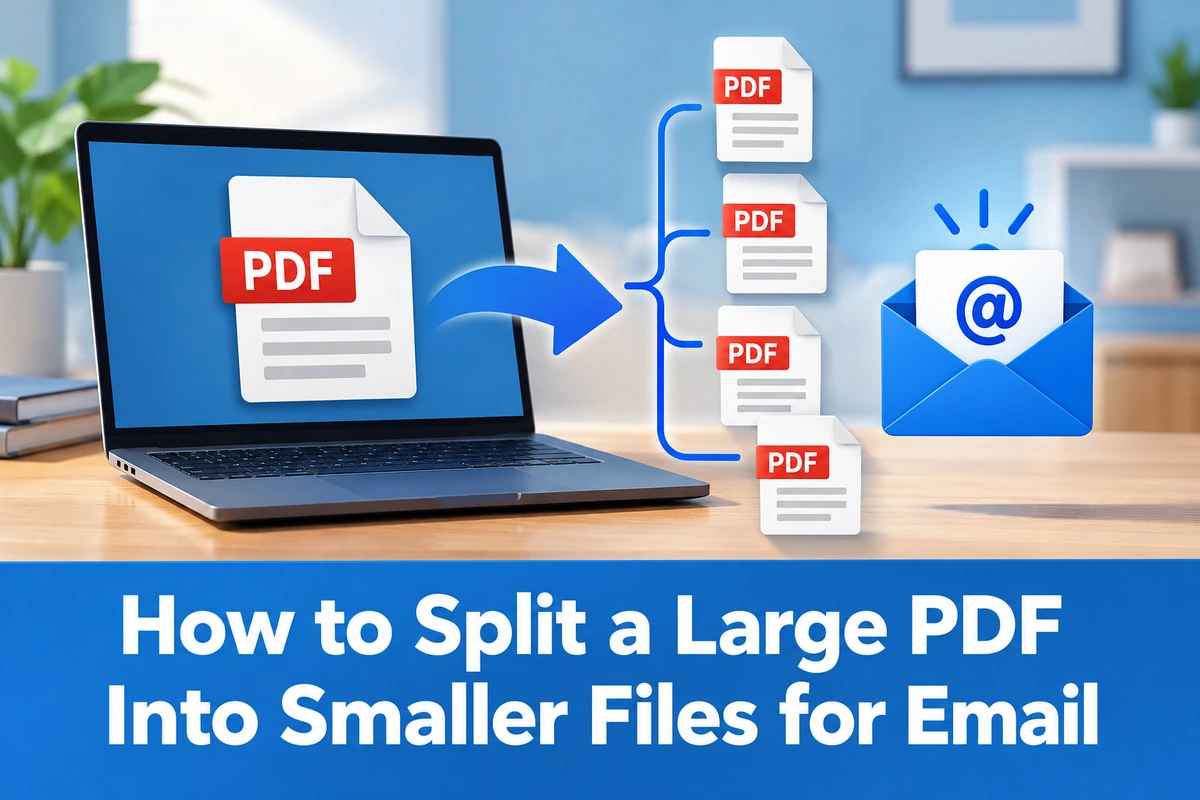
Large PDF attachments can be difficult to send by email. Some email providers limit attachment size, and a long document can also be inconvenient for the recipient to download or review.
If you do not need to keep the entire document in one file, a practical solution is to divide it into several smaller PDFs. With PDF Hub, you can do this by splitting the original document into individual pages and then combining those pages into smaller groups.
When should you split a PDF for email?
Splitting is useful when the document can be sent in logical sections. For example, you might have a 30-page report that can be divided into three smaller files, or a scanned document that contains several separate sections.
If the recipient must receive one single PDF, splitting may not be the best option. In that case, try the Compress PDF tool instead. You can also read our guide on how to compress a PDF for email.
How to split a large PDF into smaller files for email
1. Open the Split PDF tool
Start with the Split PDF tool and upload the PDF you want to divide.
2. Split the PDF into individual pages
Use the tool to separate the original PDF into individual page files. This gives you the flexibility to decide how the pages should be grouped into smaller documents.
For example, if your original PDF has 20 pages, you could later create four smaller PDFs containing pages 1–5, 6–10, 11–15, and 16–20.
3. Decide how you want to group the pages
Before creating the smaller files, choose groups that make sense for the document. Keeping related pages together makes the attachments easier for the recipient to understand.
You might divide a document by chapter, section, invoice batch, form type, or any other logical break.
4. Merge each page group into a new PDF
Open the Merge PDF tool and add the pages that should belong to the first smaller file. Put them in the correct order and create the new PDF.
Repeat the process for the remaining page groups until the original document has been divided into the smaller files you need.
If you only need certain pages from a larger document, our guide on combining selected PDF pages explains a similar Split PDF and Merge PDF workflow.
5. Check the new PDF files
Open each new PDF before attaching it to your email. Confirm that the pages are in the correct order and that no pages are missing or duplicated.
It is also useful to give the files clear names such as report-part-1.pdf, report-part-2.pdf, and report-part-3.pdf. This helps the recipient open them in the intended order.
6. Attach the smaller PDFs to your email
Once the files are ready, attach them to your message. If the combined attachments are still too large for your email provider, you can compress the individual PDFs before sending them.
Splitting a PDF vs. compressing a PDF
Splitting and compressing solve different problems. Splitting divides one document into multiple files, while compression tries to reduce the file size while keeping the document together.
Choose splitting when it is acceptable to send several attachments. Choose compression when the recipient needs one complete PDF.
In some cases, you can use both methods: first divide a very large document into logical sections, then compress each section if necessary.
Tips for creating email-friendly PDF attachments
- Use logical page groups. Avoid splitting a section in the middle unless necessary.
- Keep filenames consistent. Numbering files makes their order obvious.
- Check every PDF before sending. Make sure all required pages are included.
- Compress when needed. Smaller individual PDFs can still be compressed if attachment limits are strict.
- Tell the recipient how many files to expect. This makes it easier to notice a missing attachment.
Does splitting a PDF reduce its total size?
Not necessarily. Splitting mainly divides the content into separate files. The combined size of all the smaller PDFs may be similar to the original document.
The advantage is that each individual attachment is smaller. If your goal is to reduce the total amount of data, use PDF compression instead.
Can I turn the smaller files back into one PDF later?
Yes. If you later need the complete document again, upload the smaller files to the Merge PDF tool, place them in the correct order, and combine them into one PDF.
Split a large PDF into manageable email attachments
When a PDF is too large or inconvenient to send as a single attachment, splitting it into smaller sections can make email delivery easier. With PDF Hub, you can separate the document into pages, combine those pages into logical groups, and create smaller PDFs that are easier to attach and organize.