
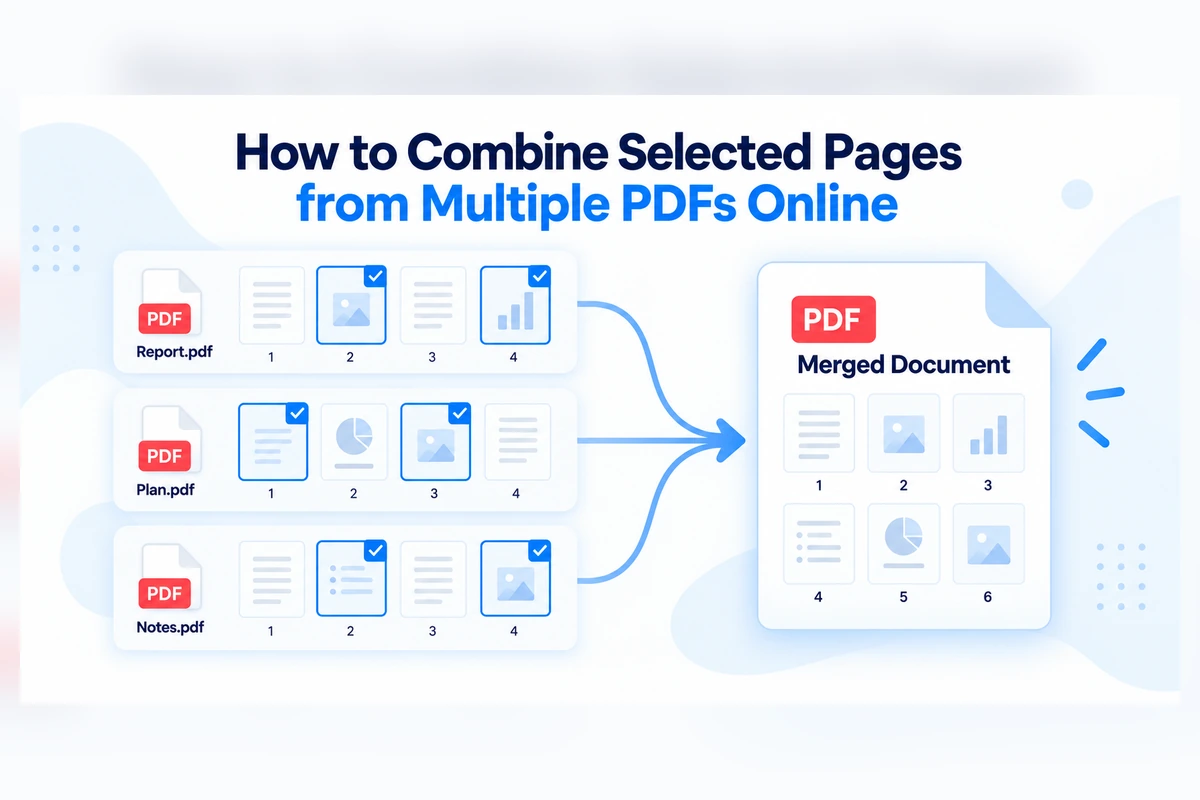
Sometimes you do not want to merge entire PDF files.
You may only need a few pages from one document, several pages from another, and perhaps one page from a third PDF.
For example, you might want to create a new document containing:
- a cover page from one PDF
- two report pages from another PDF
- a signed page from a third PDF
- an appendix from a fourth document
Instead of merging every source PDF in full, you can first separate the pages you need and then combine only those selected pages into a new document.
With PDF Hub, this can be done using two existing tools:
Split PDF → keep the pages you need → Merge PDF
This workflow gives you control over both the content and the final page order.
How to Combine Selected Pages from Multiple PDFs with PDF Hub
The process has two main stages.
First, use Split PDF to separate each source PDF into individual page files.
Then use Merge PDF to combine only the selected pages.
A typical workflow looks like this:
- Open the first PDF with Split PDF.
- Separate it into individual pages.
- Keep only the pages you need.
- Repeat the process for any additional source PDFs.
- Collect all selected page files.
- Open Merge PDF.
- Upload the selected pages.
- Arrange them in the final order.
- Merge them into one new PDF.
- Download and review the result.
The original source files remain separate, so you can always compare the final document with the originals.
Example: Combining Pages from Three PDFs
Imagine you have three source documents.
PDF A
- page 1: cover
- page 2: introduction
- page 3: contents
PDF B
- page 1: report section
- page 2: chart
- page 3: conclusion
PDF C
- page 1: signed approval
- page 2: appendix
Suppose your final PDF should contain:
- cover from PDF A
- introduction from PDF A
- chart from PDF B
- conclusion from PDF B
- signed approval from PDF C
The workflow is:
- split PDF A and keep pages 1 and 2
- split PDF B and keep pages 2 and 3
- split PDF C and keep page 1
- upload those five page files to Merge PDF
- arrange them in the required order
- create the new combined PDF
You now have one document containing only the pages you actually need.
Why Combine Selected Pages Instead of Whole PDFs?
Merging entire PDFs is useful when every page belongs in the final document.
But that is not always the case.
A source PDF may contain:
- confidential pages
- blank pages
- outdated sections
- duplicate pages
- irrelevant appendices
- internal notes
- pages intended for another recipient
If only part of the source document is needed, combining selected pages gives you a cleaner result.
Instead of:
PDF A + PDF B + PDF C
you can create:
selected pages from A + selected pages from B + selected pages from C
The final document can be smaller, more focused, and easier for the recipient to use.
How to Select Pages from the First PDF
Start with the first source document.
Open Split PDF and separate the document into individual pages.
Then identify the pages you want to include.
For example:
Source PDF: 10 pages
Needed pages: 1, 4, and 7
Keep those three page files and set the others aside.
If you want a more detailed explanation of this step, see the guide How to Extract Pages from a PDF Online.
Repeat the Process for Every Source PDF
Now repeat the same process with the remaining documents.
For example:
PDF 1: keep pages 1 and 4
PDF 2: keep pages 2, 3, and 8
PDF 3: keep page 5
At the end, you will have a collection of individual page PDFs from several different source files.
These are the pages that will form the new combined document.
How to Arrange the Selected Pages
Once you have all the pages you need, decide on the final sequence.
For example, your selected files might currently be:
A1 → A4 → B2 → B3 → B8 → C5
But the final document might need to be:
A1 → B2 → B3 → A4 → C5 → B8
Open Merge PDF and arrange the selected page files in that order before merging them.
Page order matters because the Merge PDF tool creates the final document from the sequence you provide.
If page order is the main thing you want to change, see How to Reorder Pages in a PDF Online.
Combining Selected Pages from Reports
Reports often contain more information than a recipient needs.
For example, a 40-page report may contain:
- cover
- executive summary
- financial section
- technical section
- charts
- appendices
One person may only need the executive summary and financial pages.
Another may need the technical section and charts.
Instead of sending the entire report, you can build a smaller PDF containing only the relevant sections.
This is particularly useful when several reports need to be combined into one focused document.
Combining Selected Pages from Contracts
Contracts and agreements often contain pages that need careful handling.
You may want to combine:
- a cover page
- selected contractual clauses
- a signature page
- an appendix
- supporting documentation
However, formal documents require extra caution.
Removing pages or combining excerpts may change the context of the original document.
For signed, certified, notarized, legally binding, or otherwise important records, always keep the original complete file and make sure you are permitted to create a partial version.
A selected-page PDF should not be treated as a substitute for the full original document unless that is appropriate for the specific situation.
Combining Pages from Invoices and Receipts
Business records are another common use case.
You may have:
- several invoices in one PDF
- receipts from different files
- supporting pages from reports
- payment confirmations
- delivery documents
You can extract the relevant pages from each source and merge them into one package.
For example:
Invoice → receipt → payment confirmation → delivery note
This can make the final document easier to review or archive.
Combining Pages from Scanned PDFs
The same process works with scanned PDF documents.
A scanned PDF may contain several pages stored as page images.
You can still split the document into individual page PDFs and combine the selected pages with pages from other files.
If the resulting document becomes too large, you can compress it afterward with Compress PDF.
For scanned files specifically, see How to Reduce a Scanned PDF File Size Online.
Combining Pages from Presentations
PDF presentations are another practical example.
Suppose you have three presentation PDFs and want to create one shorter document containing only:
- title slide from presentation A
- chart from presentation B
- two summary slides from presentation A
- conclusion from presentation C
Split each PDF, keep those pages, and merge them in the order you want.
The result is one new presentation-style PDF made from selected pages across several sources.
Can You Mix Different Page Sizes?
PDF files can contain pages with different dimensions.
For example, one document may use A4 pages while another contains Letter-sized pages or presentation-style slides.
When selected pages are merged, their original page dimensions may remain different.
This is not necessarily a problem, but you should review the finished PDF to make sure the result looks appropriate.
Page size differences may be especially noticeable when printing.
Can You Combine Portrait and Landscape Pages?
Yes.
A final PDF can contain both portrait and landscape pages.
For example:
- portrait cover page
- landscape chart
- portrait report page
- landscape diagram
This can be useful when combining reports with charts or technical drawings.
Always inspect the final document to confirm that page orientation is correct.
Combining Pages vs. Merging Entire PDFs
These two workflows are related but different.
Merging Whole PDFs
Use whole-file merging when you need every page from every source document.
Example:
PDF A → PDF B → PDF C
Use Merge PDF directly.
Combining Selected Pages
Use selected-page combining when you only need part of each source PDF.
Example:
A1 → A4 → B2 → C3
In this case:
Split first → select pages → merge selected pages
The second workflow gives you more control over the content of the final PDF.
Combining Pages vs. Extracting Pages
Extraction usually means taking pages out of one source PDF.
Combining selected pages goes one step further.
You extract pages from one or more documents and then create a new PDF from them.
For example:
Extract:
Keep pages 2 and 5 from PDF A.
Combine:
Keep pages 2 and 5 from PDF A, page 3 from PDF B, and page 1 from PDF C, then merge them into a new PDF.
For the extraction step, see How to Extract Pages from a PDF Online.
Combining Pages vs. Removing Pages
Removing pages means leaving unwanted pages out of the final version of one document.
Combining selected pages often involves several documents.
For example:
Remove pages:
Keep pages 1, 2, 4, and 5 from one PDF.
Combine selected pages:
Keep pages 1 and 2 from PDF A, page 4 from PDF B, and page 5 from PDF C.
The underlying Split PDF workflow can help with both.
For more information, see How to Remove Pages from a PDF Online.
Should You Compress Before or After Combining Pages?
Usually, it makes more sense to compress the final PDF afterward.
A practical order is:
Split → select pages → merge → compress
This means you only compress the pages that actually belong in the final document.
If you compress every source PDF first, you may spend time processing pages that will eventually be discarded.
Once the final PDF has been created, run it through Compress PDF if file size is still too large.
How to Avoid Mixing Up Selected Pages
Working with several source PDFs can become confusing.
A few simple habits can help.
Rename Page Files Clearly
If possible, use filenames that identify both the source document and the page.
For example:
report-a-page-01.pdf
report-b-page-04.pdf
contract-page-07.pdf
This is easier to manage than several files with similar generic names.
Write Down the Final Order
Before merging, write down the sequence you want.
For example:
A1 → B3 → A4 → C2 → B5
Then compare the uploaded file order with your list.
Check the Page Content
Do not rely only on filenames.
Open important page files and confirm their content before merging them.
Keep the Original PDFs
Do not delete your source documents while preparing the new PDF.
Keep them until you have reviewed the final result.
Review the Final PDF Carefully
After merging the selected pages, open the final PDF and check it from beginning to end.
Look for:
- missing pages
- duplicate pages
- incorrect order
- unexpected blank pages
- wrong document sections
- incorrect page orientation
- unreadable scanned content
- missing signatures or appendices
This final review is particularly important when the document will be sent to a client, submitted officially, archived, or used for professional purposes.
Can You Combine Selected PDF Pages Without Installing Software?
Yes.
PDF Hub’s public PDF tools work through a web browser. The site currently provides Split PDF for separating pages and Merge PDF for combining multiple PDF files into one document.
That means you can perform the workflow without installing a desktop PDF editor.
The general process is:
upload → process → download
After downloading the result, review the final PDF locally before relying on it.
Privacy When Combining Pages from Multiple PDFs
Combining pages from several files can involve documents from different people, departments, customers, or organizations.
That makes it especially important to check whether you are permitted to process and combine the information.
PDF Hub states that uploaded files are processed for the requested operation, stored temporarily during processing, and designed to be deleted after the request is completed.
You should still avoid uploading highly sensitive or restricted documents when online processing is not appropriate.
Useful Examples
Create a Client Package
Take:
- cover from one PDF
- proposal pages from another
- pricing page from a third
- signature page from a fourth
Merge them into one client-ready PDF.
Create a Project Summary
Combine:
- project overview
- key charts
- timeline
- budget page
- conclusion
from several larger reports.
Build an Application Package
Combine selected pages containing:
- application form
- certificate
- identification page
- supporting document
- signed declaration
into one submission file.
Prepare a Meeting Document
Take only the pages needed for the meeting instead of sending several complete reports.
Create an Archive Copy
Combine specific invoices, receipts, confirmations, or supporting records into a single PDF for one project or period.
Frequently Asked Questions
Can I combine pages from two different PDFs?
Yes.
Split both PDFs, keep the pages you need, and combine those page files with Merge PDF.
Can I combine pages from more than two PDFs?
Yes.
You can repeat the Split PDF process for additional source documents and then merge the selected page files into one final PDF.
Can I choose the final page order?
Yes.
Arrange the selected page files in the required sequence before merging them.
Can I remove pages while combining documents?
Yes.
Simply do not include the unwanted page files in the final merge.
Can I combine non-consecutive pages?
Yes.
For example, you can keep pages 2, 7, and 10 from one PDF and combine them with pages from other documents.
Can I combine scanned and digital PDF pages?
Yes.
The final PDF can contain pages originating from both scanned and digitally created PDFs.
Review the finished file because visual quality and page dimensions may differ.
Can I combine portrait and landscape pages?
Yes.
A PDF can contain both orientations.
Check the final document before printing or sharing it.
Can I compress the final PDF?
Yes.
After creating the combined document, use Compress PDF if you need a smaller file.
Does combining pages change the original PDFs?
No.
The source PDFs on your device are not automatically replaced by the new combined document.
Should I keep the original files?
Yes.
Keep the source documents until you have verified the final PDF and, for important records, retain the originals permanently when appropriate.
Combine Only the PDF Pages You Need
You do not always need to merge complete PDF files.
If the information you need is spread across several documents, you can create a more focused PDF by selecting only the relevant pages.
With PDF Hub, the workflow is straightforward:
Split each source PDF → keep the required pages → arrange them → merge them into one new PDF
Start with Split PDF to separate the source documents.
Once you have collected the pages you need, use Merge PDF to arrange and combine them into the final document.
Before sharing or replacing anything, open the finished PDF and verify that every selected page is present and in the correct order.