
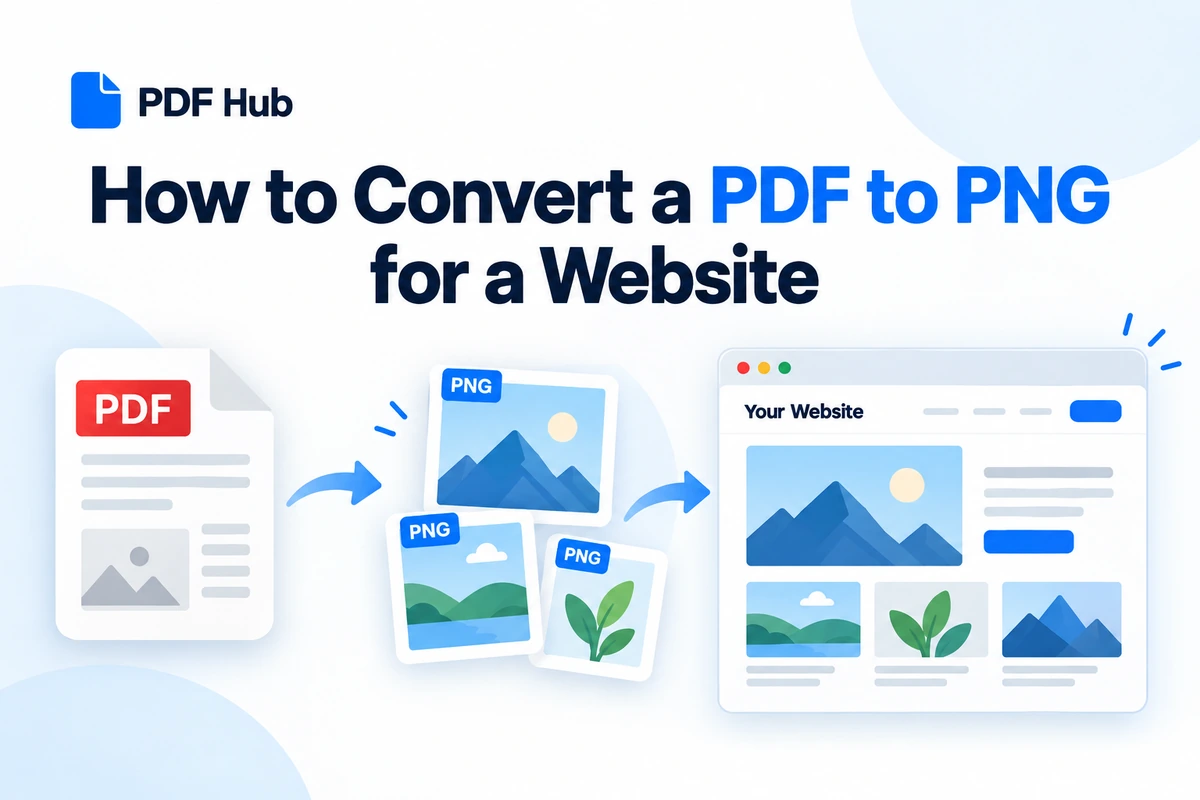
A PDF is a great format for sharing complete documents, but it is not always the best format for displaying individual pages directly on a website.
If you want to show a brochure page, flyer, menu, instruction sheet, report page, certificate, or other PDF content inside a web page, converting the PDF to PNG can make the content much easier to display.
With PDF Hub, you can convert each page of a PDF into a separate PNG image directly in your browser.
No desktop software or account is required.
Why Convert a PDF to PNG for a Website?
Websites are designed to display image formats such as PNG directly inside pages, blog posts, galleries, and content management systems.
A PDF, on the other hand, usually requires visitors to open a separate document or use an embedded PDF viewer.
Converting a PDF page to PNG can be useful when you want the content to appear immediately as part of the web page.
Common examples include:
- product brochures
- restaurant menus
- event flyers
- certificates
- instruction sheets
- reports
- price lists
- infographics
- forms used as examples
- document previews
- presentation slides
Instead of asking visitors to open the full PDF, you can show the relevant page directly as an image.
How to Convert a PDF to PNG for a Website
PDF Hub includes a browser-based PDF to PNG converter.
1. Open the PDF to PNG Tool
Open the PDF to PNG tool in PDF Hub.
2. Upload Your PDF
Choose the PDF file containing the page or pages you want to use on your website.
If the document contains multiple pages, PDF Hub converts each page into a separate PNG image.
3. Convert the PDF
Start the conversion process.
Each PDF page is converted into its own PNG image.
For example, a five-page PDF produces five separate PNG files.
4. Download the PNG Images
Download the converted images to your device.
Before uploading them to your website, open the images and check that:
- the text is readable,
- images are displayed correctly,
- nothing important is cut off,
- the correct pages were converted.
What Happens With Multi-Page PDFs?
A multi-page PDF is converted page by page.
For example:
brochure.pdf
Page 1 → PNG
Page 2 → PNG
Page 3 → PNG
Page 4 → PNG
This is useful because you can decide exactly which pages should appear on your website.
You do not have to publish every converted page.
If you only need a few pages from a larger document, you can first isolate them. Our guide on how to extract pages from a PDF online explains the workflow.
If you only need one specific page, see how to extract one page from a PDF online.
When Is PNG Better Than Embedding a PDF?
Keeping the original PDF can still be useful when visitors need to:
- download the complete document,
- print it,
- save it for later,
- read a long multi-page document.
PNG is more useful when the goal is to display the actual page content directly inside the website.
For example, instead of showing only a link that says “Download our menu as a PDF,” you could display the menu page as an image and optionally provide the complete PDF underneath.
This allows visitors to see the information immediately without opening another document.
Using PDF Pages in WordPress
If your website uses WordPress, converted PNG files can be uploaded through the Media Library just like other images.
A typical workflow is:
- convert the PDF to PNG,
- download the required image,
- upload it to the WordPress Media Library,
- add appropriate alternative text,
- insert the image into the page or article.
If the original PDF contains many pages, upload only the images that are actually useful for the page.
This keeps both the page and your media library easier to manage.
Use PNG Images as Document Previews
One of the most useful applications of PDF-to-PNG conversion is creating a visual preview of a downloadable document.
For example, you may have a:
- brochure,
- report,
- catalog,
- guide,
- worksheet,
- price list.
Instead of showing only a text link to the PDF, convert the first page to PNG and use it as a visual preview.
A page could contain the document title, a preview image of the first page, and a separate button or link for downloading the complete PDF.
This gives visitors a better idea of what the document contains before they open it.
Convert a PDF Flyer to PNG
Flyers are often created or distributed as PDF files.
If you want to display a flyer directly on an event page or blog post, converting it to PNG can be more convenient than embedding the complete PDF.
Examples include:
- event announcements,
- concerts,
- conferences,
- school events,
- promotions,
- community notices.
Convert the flyer page to PNG, upload it as an image, and keep the original PDF available separately if visitors also need a downloadable version.
Convert a PDF Menu to PNG
Restaurants, cafés, hotels, and event organizers often receive menus as PDFs.
For a website, showing the menu directly as an image can sometimes be easier for visitors than requiring them to open a PDF viewer.
If the menu has several pages, each page can be converted separately.
You can then display the pages vertically or place them in a gallery.
For longer menus, consider showing only the most relevant pages and keeping the complete PDF available as a download.
Convert a PDF Brochure to Images
A brochure may contain several pages, but a website visitor may only need to see a few of them.
For example:
- the cover page,
- a product overview,
- specifications,
- contact information.
Convert the brochure to PNG and select only the pages that are relevant to the web page.
If the pages need to be placed in a different order first, see our guide on how to reorder pages in a PDF online.
Should You Upload Every Converted Page?
Usually not.
If a PDF contains 30 pages, adding 30 full-size PNG images to one web page could make the page unnecessarily large and difficult to navigate.
Instead, consider showing:
- the first page,
- the most important page,
- a few selected pages,
and then provide access to the complete PDF.
This gives visitors a visual preview without turning the web page into an image-based copy of the entire document.
PNG File Size Matters on Websites
PNG images can be relatively large, especially when they contain detailed graphics, screenshots, or high-resolution scanned content.
Large images can make web pages slower to load.
After converting the PDF, check the size of the PNG images before uploading them to your site.
If an image is much larger than necessary, consider resizing or optimizing it before publishing.
The goal is to keep the content readable while avoiding unnecessarily large downloads for website visitors.
Use Descriptive File Names
Before uploading a PNG to your website, rename the file to something meaningful.
Instead of a generic filename such as:
page-1.png
use something more descriptive, such as:
product-brochure-cover.png
restaurant-menu-page-1.png
or:
annual-report-preview.png
Descriptive file names make media libraries easier to manage and provide clearer context about the image.
Add Useful ALT Text
When adding a PNG image to a website, use alternative text that describes what the image shows or what purpose it serves.
For example:
First page of a PDF document compression guide
or:
Restaurant dinner menu showing main courses and prices
Avoid generic alternative text such as:
image
or:
PNG
ALT text should communicate useful information about the content or purpose of the image.
Keep the Original PDF Available When Useful
Converting a PDF to PNG does not necessarily mean that you should remove the original PDF.
Often, the best setup is to use both formats:
- PNG for an immediate visual preview,
- PDF for downloading or printing the complete document.
This gives visitors more flexibility.
Someone who only wants a quick look can view the image, while someone who needs the full document can still download the PDF.
PDF to PNG vs PDF to Word
PDF to PNG and PDF to Word solve different problems.
Use PDF to PNG when you want an image representation of each PDF page.
Use PDF to Word when you want to work with the document as editable content.
If you need an editable document instead of an image, use the PDF to Word tool.
For a detailed walkthrough, see how to convert PDF to Word online.
What If the PDF Contains Pages You Do Not Need?
You can clean up the PDF before converting it.
For example, imagine that a 12-page PDF contains only three pages that you want to publish on the website.
You can first separate the document with the Split PDF tool and keep only the pages you need.
Our guide on how to extract pages from a PDF online explains this process in more detail.
If you instead need to remove unwanted pages from the document, see how to remove pages from a PDF online.
Should You Compress the PDF First?
Usually, you do not need to compress a PDF simply because you are converting it to PNG.
The PDF-to-PNG process creates new image files from the individual document pages.
However, if you also plan to offer the original PDF as a download and that PDF is very large, you may want to reduce its size separately.
You can do this with the Compress PDF tool.
For more information, read how to reduce PDF file size without losing quality.
If the document consists mainly of scanned pages, see how to reduce a scanned PDF file size online.
Common Website Uses for PDF to PNG Conversion
There are many situations where converting a PDF page into an image is useful.
Blog Posts
Show a page from a report, study, guide, or document directly inside an article.
This can help illustrate a specific point without requiring readers to open the entire PDF.
Landing Pages
Use a PNG preview of a brochure, checklist, report, guide, or downloadable resource.
The image can show visitors what they will receive before they download the complete file.
Product Pages
Display pages from product documentation, specification sheets, brochures, or catalogs.
This is particularly useful when one page contains information that visitors are likely to want immediately.
Event Pages
Convert posters, schedules, programs, invitations, or flyers from PDF to images.
Visitors can then see the information directly on the event page.
Educational Websites
Show worksheets, examples, diagrams, certificates, or selected document pages without requiring students to open a separate PDF.
Internal Websites
Turn instructions, notices, or reference documents into images that employees can view directly inside an internal page.
Check Readability on Mobile Devices
A document page that looks perfectly readable on a desktop monitor may become difficult to read on a phone.
After publishing the image, check the page on a mobile device.
Pay particular attention to:
- small text,
- tables,
- charts,
- multi-column layouts,
- footnotes.
If visitors have to zoom extensively to read the content, it may be better to use the PNG as a preview and provide the original PDF for detailed reading.
Avoid Turning Text-Heavy Web Pages Into Images
Converting PDF pages to PNG is useful for previews and visually structured documents, but it should not replace normal webpage text when the information belongs directly on the website.
For example, if a PDF contains several paragraphs of important information, publishing that information as normal HTML text will often provide a better experience.
Regular webpage text is generally easier to:
- read on different screen sizes,
- search,
- select and copy,
- update,
- navigate with assistive technology.
Use PNG when maintaining the visual appearance of the original page is important.
Keep Image Quality in Mind
PDF documents can contain many different types of content, including:
- text,
- vector graphics,
- photographs,
- diagrams,
- scanned pages,
- charts and tables.
After conversion, inspect the PNG image at normal viewing size.
Check that:
- small text remains readable,
- graphics are clear,
- colors look correct,
- scanned content has enough detail.
If the result is intended only as a thumbnail or preview, you may not need to display the image at its full original size.
A Practical Website Workflow
For many websites, a simple workflow works well:
- decide which PDF pages visitors actually need to see,
- extract unnecessary pages if required,
- convert the relevant PDF pages to PNG,
- download and review the images,
- rename the files descriptively,
- optimize the images if they are unnecessarily large,
- upload them to your website,
- add descriptive ALT text,
- keep the complete PDF available if visitors may need to download it.
This approach gives visitors immediate visual access to the important content while preserving the complete document when necessary.
FAQ
Can I convert a PDF to PNG online?
Yes. PDF Hub includes a browser-based PDF to PNG tool that converts PDF pages into separate PNG images.
Does each PDF page become a separate PNG?
Yes. A multi-page PDF produces a separate PNG image for each converted page.
Can I use the PNG images on a website?
Yes. PNG is a standard image format supported by modern web browsers and content management systems such as WordPress.
Do I need to convert every PDF page?
No. You can use only the pages that are relevant to your website.
For larger documents, it often makes more sense to display a few important pages and keep the complete PDF available separately.
Can I convert only one page?
Yes. First isolate the page you need and then convert that page to PNG.
See our guide on how to extract one page from a PDF online for the complete workflow.
Should I replace the downloadable PDF with PNG images?
Not necessarily.
In many cases, the best approach is to show a PNG preview while keeping the complete PDF available for visitors who want to download, save, or print the document.
Can I convert a PDF to an editable Word document instead?
Yes. If your goal is editing rather than creating an image, use the PDF to Word tool.
Convert Your PDF Pages to PNG
If you need to display a PDF page directly on a website, converting it to PNG is a simple way to create an image that browsers and content management systems can display easily.
Start with the PDF to PNG tool, convert the document, choose the pages you actually need, check their readability and file size, and then upload the images to your website.
For a general introduction to the conversion process, you can also read our existing guide on how to convert PDF to PNG online.