
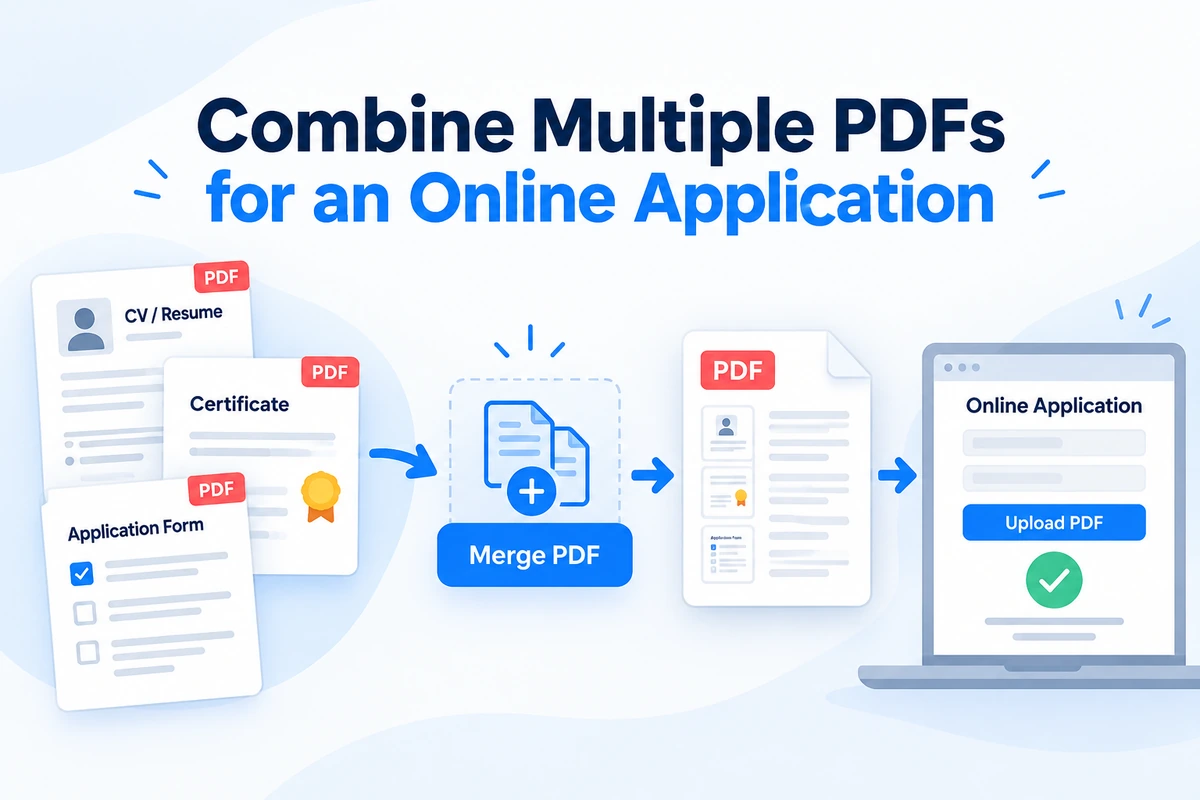
Online application portals often ask you to upload supporting documents as a single PDF.
The problem is that your documents may be stored in several separate files: a CV, certificates, forms, references, transcripts, identification documents, or other attachments.
Instead of uploading them individually, you can combine the required PDFs into one document before submitting the application.
With PDF Hub, you can merge multiple PDF files directly in your browser without installing desktop software.
Why Combine PDFs for an Online Application?
Many application systems limit the number of files you can upload.
Some portals provide only one field for supporting documents, while others ask applicants to upload a single combined PDF.
This is common with:
- job applications,
- university applications,
- scholarship applications,
- government forms,
- grant applications,
- visa applications,
- tenders,
- professional registrations,
- housing applications,
- insurance documentation.
Combining the files in advance can make the submission easier to review and reduce the chance that an important document is forgotten.
How to Combine Multiple PDFs Into One File
PDF Hub includes a browser-based tool for merging PDF files.
1. Collect the Documents You Need
Before merging anything, identify all the files required by the application.
For example:
- application form,
- CV or résumé,
- cover letter,
- certificates,
- diploma,
- transcript,
- references,
- supporting evidence.
Make sure you are using the final version of each document.
2. Check the Required Order
The order of the documents matters because the merged PDF will normally follow the sequence in which the files are arranged.
A typical application might use this order:
- application form,
- cover letter,
- CV,
- certificates,
- references,
- supporting documents.
Always follow the instructions provided by the application portal if it specifies a particular order.
3. Open the Merge PDF Tool
Open the Merge PDF tool in PDF Hub.
Add the PDF files you want to combine.
4. Arrange the Files
Before creating the final document, place the files in the order you want them to appear.
Take a moment to check the sequence.
It is much easier to fix the order before submission than to discover after uploading that your certificate appears before your application form or that supporting documents are mixed together.
5. Merge the PDFs
Start the merge process.
The individual PDF files are combined into a single document.
Download the resulting file and save it with a clear filename.
For example:
john-smith-application-documents.pdf
or:
scholarship-application-supporting-documents.pdf
Avoid vague filenames such as:
merged.pdf
or:
document-final-2.pdf
A descriptive filename makes the file easier to recognize later.
Check the Combined PDF Before Uploading It
Do not upload the merged PDF immediately without opening it first.
Check the complete document from beginning to end.
Make sure:
- every required document is included,
- the pages appear in the correct order,
- no pages are missing,
- no document appears twice,
- text remains readable,
- scans are oriented correctly,
- signatures are visible,
- the file opens normally.
For important applications, this final check is worth the extra minute.
What If the Pages Are in the Wrong Order?
Sometimes the individual files are correct, but pages inside the final document are not arranged as intended.
For example, you may have:
- a certificate appearing before the CV,
- a supporting page placed too early,
- pages from one document in the wrong sequence.
If you need to adjust the page order, see our guide on how to reorder pages in a PDF online.
It is usually better to correct the document structure before submitting it rather than relying on the reviewer to understand an unusual page sequence.
What If You Only Need Some Pages From a PDF?
You may not need every page from every source file.
For example, a 20-page report might contain only three pages relevant to the application.
Instead of including the entire document, first isolate the pages you actually need.
Our guide on how to extract pages from a PDF online explains how to keep selected pages.
If you need just one specific page, see how to extract one page from a PDF online.
After preparing the required pages, combine them with the rest of your application documents.
Combining Selected Pages From Different PDFs
Some applications require information that is spread across several large documents.
You might need:
- page 1 from one PDF,
- pages 3–4 from another,
- one certificate from a third file,
- a final signed form from a fourth document.
In that situation, it is often better to extract the required pages first and then merge only those pages into the final application.
See how to combine selected pages from multiple PDFs online for a complete workflow.
This can produce a cleaner application file and avoid including unnecessary material.
Remove Unwanted Pages Before Merging
Application documents often contain pages you do not need.
Examples include:
- blank pages,
- instruction pages,
- outdated versions,
- duplicate certificates,
- cover sheets,
- scanner-generated blank pages.
Removing unnecessary pages can make the final PDF easier to review and may also reduce its size.
If you need to clean up a document first, see how to remove pages from a PDF online.
Only remove pages when doing so is allowed by the application requirements.
If the portal asks for a complete document, do not remove required pages simply to make the PDF shorter.
Watch the Application Portal’s File Size Limit
Combining several PDFs can create a much larger file.
For example, you may start with:
- CV: 500 KB
- certificate: 2 MB
- scanned diploma: 4 MB
- references: 1 MB
After merging them, the final PDF may exceed the upload limit of the application portal.
Before uploading, check the portal’s maximum allowed file size.
Common limits can vary considerably, so use the exact limit shown by the application system rather than assuming a particular number.
What If the Combined PDF Is Too Large?
If the merged document exceeds the upload limit, you can reduce its size with the Compress PDF tool.
For application-specific guidance, see how to compress a PDF for an online application.
The usual workflow is:
- prepare all required documents,
- remove unnecessary pages if allowed,
- merge the PDFs,
- check the final document,
- compress it if necessary,
- check readability again,
- upload it to the application portal.
This keeps the final document organized while also giving you control over the file size.
Be Careful With Scanned Documents
Scanned PDFs are often the main reason an application file becomes very large.
A single scanned diploma, certificate, or signed form can sometimes be larger than several text-based PDFs combined.
If scanned pages are causing the problem, see how to reduce a scanned PDF file size online.
After compression, always inspect small text, stamps, signatures, and important details to make sure they remain readable.
Keep Signatures and Stamps Readable
Application PDFs may contain:
- handwritten signatures,
- official stamps,
- seals,
- handwritten notes,
- certification marks.
These details can be important.
After merging or compressing the PDF, zoom in and make sure they are still clearly visible.
Reducing file size is useful, but readability should remain the priority.
Combine PDFs for a Job Application
A job application may ask you to provide several documents together.
For example:
- cover letter,
- CV,
- professional certificates,
- references,
- additional qualifications.
Combining them into one PDF can make the application easier to review when the employer requests a single document.
A descriptive filename might be:
firstname-lastname-job-application.pdf
Before submitting it, verify that your most important documents appear first.
Combine PDFs for a University Application
University applications often require several supporting documents.
These may include:
- application forms,
- transcripts,
- diplomas,
- language certificates,
- recommendation letters,
- identification documents,
- supporting statements.
If the university asks for one combined PDF, arrange the documents in the exact order requested in the application instructions.
Academic documents can contain important details in small text, so carefully review the final PDF after merging or compressing it.
Combine PDFs for a Scholarship Application
Scholarship applications may require:
- application form,
- motivation letter,
- CV,
- academic records,
- certificates,
- recommendation letters,
- evidence of achievements.
A single organized PDF can make the submission more convenient when the application portal accepts only one supporting file.
Use clear ordering and avoid including unrelated documents simply because they are available.
Combine PDFs for Government Applications
Government portals often have strict document requirements.
Before combining files, check:
- which documents are required,
- whether complete documents must be provided,
- the required file format,
- maximum upload size,
- whether documents must appear in a specific order.
Do not remove pages from official documents unless the instructions clearly allow it.
Combine PDFs for Visa or Immigration Applications
Visa and immigration processes may involve many supporting documents.
Depending on the application, these can include:
- forms,
- passport-related documents,
- travel documents,
- financial evidence,
- employment evidence,
- accommodation documents,
- supporting letters.
Follow the instructions of the relevant authority carefully.
If the portal requests one PDF for a specific document category, combine only the documents that belong to that category rather than creating one enormous PDF containing everything.
Combine PDFs for Tenders and Business Applications
Business applications and tenders often involve structured supporting documentation.
You may need to combine:
- application forms,
- company information,
- certificates,
- technical documentation,
- references,
- declarations,
- signed pages.
Keep the final document organized and make sure all mandatory attachments are included.
If the tender specifies document order or naming conventions, follow those instructions exactly.
Avoid Duplicate Pages
Duplicates are easy to introduce when several PDFs are being combined.
For example, the same certificate may already be included inside another supporting-document PDF.
Before submitting the application, quickly scan the final document for duplicate pages.
Removing duplicates makes the application cleaner and reduces unnecessary file size.
Use a Logical Document Order
If the application portal does not provide a required order, use a structure that is easy for a reviewer to understand.
A reasonable sequence is often:
- main application document,
- personal statement or cover letter,
- CV,
- qualifications,
- certificates,
- references,
- additional supporting documents.
The exact order depends on the application, but consistency and clarity are more important than following a universal template.
Do Not Add Documents That Were Not Requested
A larger application is not automatically a better application.
If the instructions ask for:
- CV,
- diploma,
- two certificates,
there is usually no benefit in adding ten additional unrelated documents.
Extra material can make the final PDF harder to review and may even conflict with submission requirements.
Combine only the files that are relevant to the application.
Give the Final PDF a Clear Filename
Before uploading, rename the merged file.
Good examples include:
maria-kovac-university-application.pdf
john-smith-supporting-documents.pdf
scholarship-application-2026.pdf
Avoid filenames such as:
scan0001.pdf
merged-new-final-final.pdf
or:
document.pdf
A clear filename can also help you identify the correct version later.
Keep a Copy of the Submitted Version
Once the application is complete, keep a copy of the exact PDF you submitted.
This can be useful if:
- the organization contacts you later,
- you need to confirm which documents were included,
- you submit a similar application elsewhere,
- there is a question about a missing attachment.
Store the final PDF separately from the individual source documents.
Do Not Modify the File After Your Final Check
Once you have reviewed the final application PDF, avoid making unnecessary last-minute changes.
Any change can introduce a new problem:
- missing page,
- wrong order,
- duplicate page,
- larger file size,
- incorrect version.
If you do make a change, repeat the final review before uploading.
A Practical Application PDF Workflow
For most online applications, this sequence works well:
- collect all required documents,
- check the application instructions,
- remove unnecessary pages only when allowed,
- extract selected pages if needed,
- arrange the documents in the correct order,
- combine the PDFs,
- open and review the complete document,
- compress the PDF if it exceeds the upload limit,
- check readability again,
- rename the final file clearly,
- upload it to the portal,
- keep a copy of the submitted version.
This approach reduces the risk of discovering a document problem after the application has already been submitted.
Merge First or Compress First?
In most cases, it is easier to merge the required documents first and then check the size of the final PDF.
That gives you one complete file to evaluate.
If the result exceeds the portal’s limit, compress the combined document.
However, if one individual scanned PDF is extremely large, reducing that file before merging can also be useful.
The important thing is to review the final merged document before submission.
What If One File Is Not a PDF?
The Merge PDF tool is intended for PDF files.
If one of your application documents is in another format, convert it to PDF using an appropriate method before combining it with the rest of the application.
Be especially careful with formatting after conversion.
Check:
- page size,
- fonts,
- images,
- tables,
- signatures,
- page breaks.
The final combined PDF should look consistent and readable.
What If the Portal Allows Multiple Uploads?
If the application portal provides separate fields for different document types, you may not need to combine everything.
For example:
- CV upload field,
- certificate upload field,
- supporting documents field.
In that situation, follow the portal structure.
Do not merge files simply because you can.
The purpose of combining documents is to satisfy the application’s requirements and make the submission easier to manage.
Check the Final PDF on More Than One Page
Do not verify only the first page.
Open several parts of the final file:
- first page,
- middle pages,
- scanned documents,
- signed pages,
- final page.
This helps catch problems that may not be obvious at the beginning of the document.
FAQ
Can I combine multiple PDFs into one file online?
Yes. PDF Hub’s Merge PDF tool can combine multiple PDF files into a single document.
Can I combine a CV and certificates into one PDF?
Yes, provided the application instructions allow or require the documents to be submitted together.
Arrange the files in the order you want before creating the final PDF.
Can I choose the order of the documents?
Yes. Arrange the source files in the desired sequence before merging them.
If pages later need further adjustment, see how to reorder pages in a PDF online.
Can I use only selected pages from a PDF?
Yes. First extract the required pages and then combine them with the other documents.
See how to combine selected pages from multiple PDFs online for a detailed workflow.
What if the merged PDF is too large?
Use the Compress PDF tool to reduce the final file size.
For this specific use case, read how to compress a PDF for an online application.
Should I merge every supporting document into one PDF?
Only if the application instructions require or allow it.
If the portal provides separate upload fields, use those fields as instructed.
Should I compress the PDF before uploading it?
Only when necessary.
Check the portal’s file size limit first. If the PDF already fits within the limit and is easy to upload, additional compression may not be needed.
Combine Your Application Documents Into One PDF
If an online application asks you to submit several documents as one file, combining them into a single organized PDF can simplify the process.
Start with the Merge PDF tool, arrange your documents in the required order, create the combined file, and review every important page before uploading it.
If the finished PDF is larger than the portal allows, use our guide on how to compress a PDF for an online application to reduce the size while keeping important information readable.