
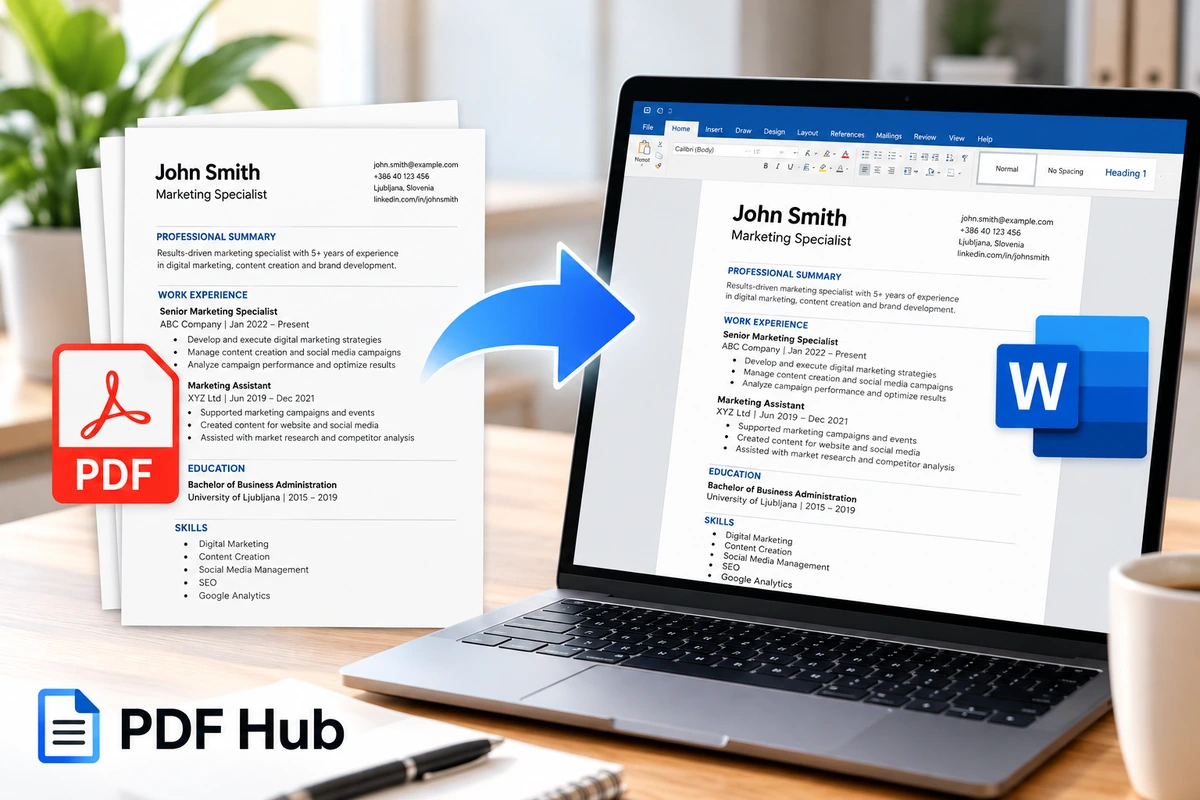
A resume is often saved as a PDF because the format preserves its layout and is easy to share with employers.
The problem comes when you need to update it.
Maybe you want to add a new job, change your contact details, update your skills, correct a date, or tailor the resume for a specific application. Editing the PDF directly may be inconvenient.
One option is to convert the PDF resume to Word first and continue editing the document there.
With PDF Hub, you can convert a PDF to a Word document directly in your browser without installing additional desktop software.
Why Convert a PDF Resume to Word?
PDF is excellent for distributing a finished resume, but Word is generally more practical when the content still needs to be edited.
You may want to change:
- your employment history,
- job titles,
- dates,
- education,
- skills,
- contact information,
- certifications,
- profile summary,
- project descriptions,
- references.
Converting the resume to Word gives you a document that can be easier to revise before preparing the next version.
How to Convert a PDF Resume to Word
PDF Hub includes a browser-based PDF to Word converter.
1. Open the PDF to Word Tool
Start with the PDF to Word tool.
2. Upload Your Resume
Select the PDF resume from your device.
Before uploading, make sure you are using the most recent version of the document.
If you have several similarly named copies, open the PDF first and verify that it contains the information you actually want to edit.
3. Convert the PDF
Start the conversion.
PDF Hub processes the PDF and creates a Word version of the document.
4. Download the Word File
Download the converted document and open it in Microsoft Word or another compatible word processor.
Do not immediately assume that every element will look identical to the original PDF.
Review the document before editing it.
Check the Converted Resume Before Making Changes
PDF and Word handle document layouts differently.
After conversion, compare the Word document with the original PDF.
Check:
- headings,
- fonts,
- bullet points,
- dates,
- columns,
- tables,
- spacing,
- page breaks,
- contact information,
- links.
A simple resume may convert very cleanly, while a document with complex columns, graphics, or unusual fonts may require some manual adjustment.
Keep the original PDF open while reviewing the Word version.
Text-Based PDFs Usually Work Best
A PDF can contain real selectable text or it can contain scanned images of text.
These are very different documents from a conversion perspective.
If you can select words in the original PDF with your mouse, the document probably contains actual text.
That type of PDF is generally more suitable for conversion to Word.
If the resume is a scan or photograph stored inside a PDF, text recognition may be required before the content becomes fully editable.
PDF Hub’s PDF to Word workflow should therefore not be treated as an OCR service for image-only documents.
How to Tell Whether Your Resume Is Scanned
Open the original PDF and try to select one sentence.
If you can highlight individual words or characters, the PDF probably contains text.
If clicking or dragging only selects the entire page as an image, the document may be scanned.
This distinction matters because scanned resumes can require OCR software to recognize the text before meaningful editing is possible.
Update Your Contact Information
One of the most common reasons to edit an old resume is outdated contact information.
After conversion, check:
- phone number,
- email address,
- city or location,
- website,
- portfolio,
- professional profile links.
Old contact details can easily remain unnoticed when a resume has been reused for several years.
Check the header and footer as well, because contact information is sometimes repeated there.
Update Your Employment History
If you have changed jobs or responsibilities since the resume was created, update the employment section carefully.
For each position, check:
- employer name,
- job title,
- start date,
- end date,
- responsibilities,
- achievements.
If you are still employed in the role, make sure the date range reflects that correctly.
Also check whether an older position can be shortened to make space for more relevant recent experience.
Tailor the Resume for a Specific Job
Converting an existing PDF resume to Word can be useful when you want to customize the document for a specific application.
You might adjust:
- professional summary,
- relevant skills,
- project descriptions,
- achievement bullets,
- terminology used for your experience.
The goal is not necessarily to rewrite the entire resume.
Often, a few targeted updates can make the document more relevant to the position you are applying for.
Update Your Skills Section
Skills sections can become outdated quickly.
You may have learned new:
- software,
- technologies,
- languages,
- professional tools,
- certifications,
- industry skills.
At the same time, older skills that are no longer relevant may not deserve as much space.
After converting the resume, review this section rather than simply adding new items indefinitely.
Check Dates Carefully
Dates are especially important in resumes.
Check:
- employment dates,
- education dates,
- certificate dates,
- project periods.
Conversion itself should not be used as an opportunity to guess or reconstruct information.
Use your original records if you are unsure.
Consistent formatting also helps. For example, avoid mixing several styles such as:
2022 - 2024
Jan 2024 – September 2025
06/2025
unless there is a specific reason.
Watch for Font Changes
The original PDF may use a font that is not installed on the computer where you open the converted Word document.
In that case, Word may substitute another font.
This can change:
- line lengths,
- page breaks,
- heading sizes,
- spacing.
If the document suddenly becomes two pages instead of one, or three pages instead of two, font substitution may be one of the reasons.
Compare the overall appearance with the original PDF.
Check Columns and Text Boxes
Modern resumes sometimes use:
- two-column layouts,
- sidebars,
- text boxes,
- icons,
- visual skill indicators.
These designs may require additional cleanup after conversion because Word uses its own layout structure.
Check especially where text flows from one section to another.
A visually attractive PDF can sometimes be more difficult to edit than a simple single-column resume.
Check Bullet Points
Bullet points are common in employment-history sections.
After conversion, verify that:
- bullets remain aligned,
- indentation is consistent,
- lines do not wrap strangely,
- there are no duplicated bullet symbols.
Small formatting problems can become very noticeable in a short document such as a resume.
Check Hyperlinks
Your resume may contain links to:
- portfolio websites,
- LinkedIn,
- GitHub,
- personal websites,
- publications,
- projects.
After conversion, confirm that the visible text and destination are still correct.
If you changed your portfolio or professional profile since the original resume was created, update those links before creating the final version.
Should You Keep the Original PDF?
Yes.
Do not overwrite or delete the original PDF simply because you now have an editable Word version.
Keep both files.
For example:
resume-original.pdf
resume-editable.docx
This gives you a reference if formatting changes during editing.
It also allows you to compare the final version with the original document.
Save Different Resume Versions Clearly
If you tailor your resume for several applications, clear filenames are helpful.
Instead of:
resume-final.docx
resume-final2.docx
resume-new-final.docx
consider filenames such as:
john-smith-resume-marketing.docx
john-smith-resume-project-manager.docx
john-smith-resume-2026.docx
The same applies to your final PDF versions.
Clear filenames make it much easier to avoid uploading the wrong document to an application portal.
Review the Resume After Editing
Once your changes are complete, read the entire resume again.
Do not review only the sections you edited.
Check:
- spelling,
- grammar,
- dates,
- alignment,
- page breaks,
- headings,
- contact information,
- bullet points,
- whitespace.
Editing one paragraph can change the layout elsewhere in the document.
For example, adding two lines near the beginning may push content onto another page.
Prepare the Final Version for an Online Application
After editing your resume, you may eventually need to submit it through an online application system.
Many employers prefer or require PDF files because PDF preserves the final layout.
If your final PDF becomes too large for the portal, you can use the Compress PDF tool.
For detailed application-specific guidance, see how to compress a PDF for an online application.
Combine Your Resume With Other Application Documents
Some application portals ask for a single PDF containing several supporting documents.
For example:
- cover letter,
- resume,
- certificates,
- references.
If that happens, prepare your final resume first and then combine it with the other required PDFs.
Use the Merge PDF tool or follow our guide on how to combine multiple PDFs into one file for an online application.
Always check the employer’s instructions before combining files.
If separate upload fields are provided, use them as requested.
What If Your Resume Contains Extra Pages?
An old resume file may include pages that are no longer required.
For example:
- an outdated cover page,
- old references,
- obsolete certificates,
- blank pages.
If you are working with the PDF version and need only certain pages, you can first isolate the relevant content.
See how to extract pages from a PDF online.
If you need only one specific page, see how to extract one page from a PDF online.
What If the Resume Is Part of a Larger PDF?
Sometimes a resume is stored inside a larger application package.
For example, the PDF may contain:
- cover letter,
- resume,
- certificates,
- references.
If you want to edit only the resume, you do not necessarily need to convert the entire application package to Word.
First extract the resume pages, then convert only those pages.
This keeps the editable document cleaner and avoids unnecessary content.
PDF to Word vs Recreating the Resume
Conversion is useful when you no longer have the original editable document.
However, conversion is not always the best solution.
If the resume has a highly complex visual design and conversion produces significant formatting issues, recreating the document in Word may sometimes be faster than repairing every element.
Consider:
- how much editing is required,
- how complex the original layout is,
- whether the original editable source still exists.
If you still have the original Word document, use that instead of converting the PDF.
Should You Use a Simple Resume Layout?
Simple layouts are often easier to maintain.
A resume with clear headings and straightforward formatting can be easier to:
- edit,
- update,
- convert,
- review,
- export.
Complex graphical layouts may look impressive but can create more work when the document needs frequent updates.
The best layout depends on your field and the requirements of the application.
Be Careful With Personal Information
A resume contains personal information, often including:
- full name,
- contact details,
- employment history,
- education,
- professional background.
Before uploading any document to an online service, consider whether online processing is appropriate for the information it contains.
Do not include unnecessary sensitive information in a resume simply because an older version contained it.
Keep a Master Resume
A useful approach is to maintain one complete editable master resume.
The master version can contain your full:
- employment history,
- skills,
- education,
- certifications,
- projects,
- achievements.
For individual applications, create copies and shorten or tailor them as necessary.
If you currently have only a PDF version, converting it to Word can help you create a new editable master document.
A Practical Resume Update Workflow
A simple workflow can look like this:
- locate the latest PDF resume,
- keep a backup copy,
- convert the PDF to Word,
- compare the Word document with the original PDF,
- fix any formatting issues,
- update contact details,
- update employment history,
- update skills and certifications,
- tailor the content for the application,
- proofread the full document,
- prepare the final version,
- check the application portal requirements.
This reduces the risk of submitting an outdated or incorrectly formatted resume.
Common Conversion Problems to Check
After converting a PDF resume to Word, look for a few common issues.
Changed Line Breaks
Sentences or bullet points may wrap differently from the PDF.
Different Fonts
Word may substitute fonts that are unavailable on your computer.
Shifted Columns
Multi-column resumes may require additional adjustment.
Changed Spacing
Paragraph spacing and margins may differ slightly.
Broken Page Breaks
Content that originally fit on one page may move onto another.
Graphics in Different Positions
Icons, logos, or decorative elements may shift.
These issues do not necessarily mean that conversion failed. They reflect the differences between fixed-layout PDF documents and editable Word documents.
What About Scanned Resumes?
A scanned resume is essentially an image of a document.
Converting that type of PDF into editable Word text generally requires optical character recognition, or OCR.
If the source PDF does not contain selectable text, do not expect the same result as with a normal text-based PDF.
Check the source file before conversion.
If possible, locate the original digital version of the resume instead.
FAQ
Can I convert a PDF resume to Word?
Yes. You can use the PDF to Word tool to convert a PDF into a Word document.
Why would I convert my resume to Word?
Word is generally easier to edit when you need to update employment history, skills, dates, contact information, or other resume content.
Will the Word document look exactly like the PDF?
Not always.
PDF and Word use different document structures, so fonts, spacing, columns, tables, and page breaks may require some adjustment.
Can I edit a scanned PDF resume?
A scanned PDF may require OCR to recognize the text before it becomes fully editable.
The best results generally come from PDFs that already contain selectable text.
Should I delete the original PDF after conversion?
No.
Keep the original PDF as a reference while editing the converted Word document.
Can I convert only part of a larger PDF?
Yes.
First extract the pages containing the resume, then convert those pages to Word.
See how to extract pages from a PDF online for the workflow.
Can I combine the final resume with certificates afterward?
Yes.
If an application requires one combined file, use the Merge PDF tool after preparing the final documents.
What if the final application PDF is too large?
Use the Compress PDF tool and check the final document carefully before uploading it.
Convert Your PDF Resume to Word
If the only copy of your resume is a PDF and you need to update it, converting it to Word can give you a more convenient starting point for editing.
Open the PDF to Word tool, convert the document, compare the result with your original resume, and carefully review the formatting before making your changes.
For the general conversion workflow, you can also read how to convert PDF to Word online.