
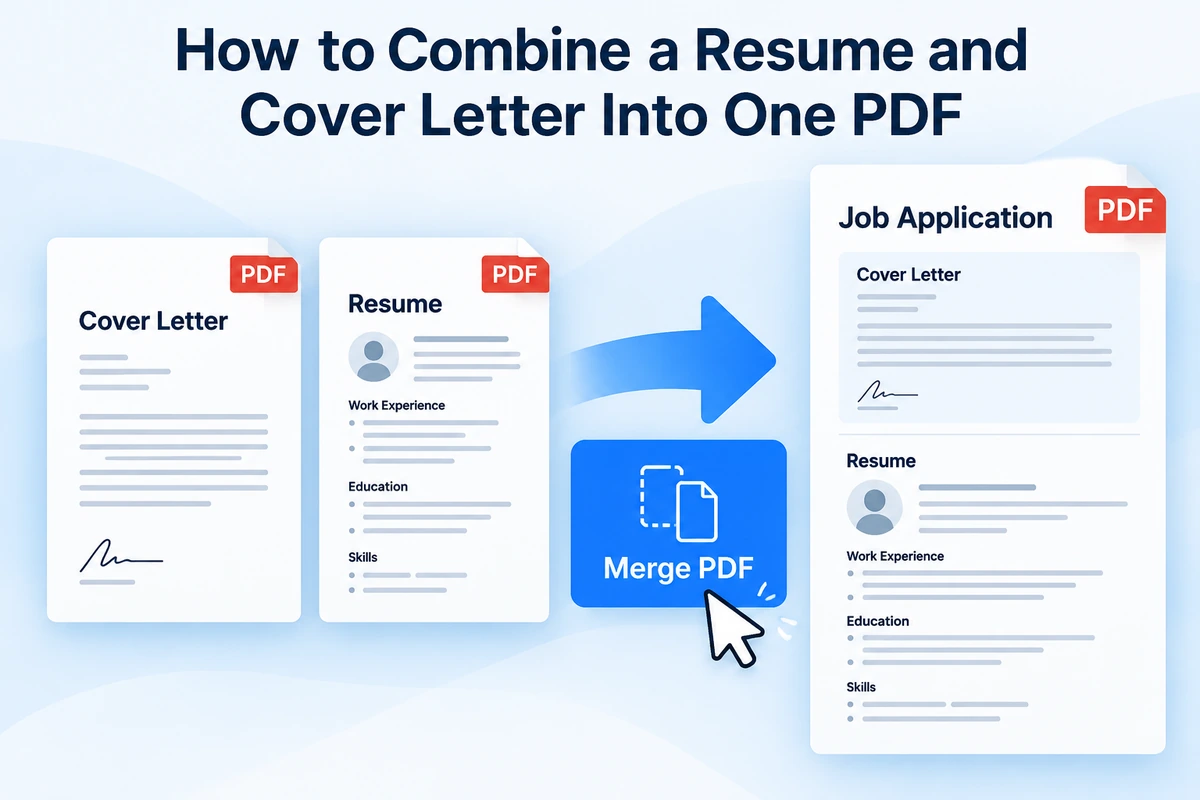
A job application may ask you to submit a resume and cover letter as separate files, but sometimes the employer or application portal wants both documents in a single PDF.
If your cover letter and resume are already saved as separate PDFs, you can combine them into one file before uploading the application.
With PDF Hub, you can merge PDF documents directly in your browser without installing additional desktop software.
Why Combine a Resume and Cover Letter Into One PDF?
Combining a resume and cover letter can be useful when an employer provides only one upload field for application documents.
It can also make the application easier to manage because both documents stay together in one file.
Common situations include:
- job application portals with one upload field,
- applications submitted by email,
- recruitment agencies,
- freelance applications,
- internship applications,
- graduate programs,
- internal job applications.
Before combining the files, always check the employer’s instructions.
If the employer explicitly asks for separate files, submit them separately.
Which Document Should Come First?
In most cases, the cover letter should appear before the resume.
A typical combined application PDF looks like this:
- cover letter,
- resume.
This gives the reviewer a short introduction before they reach your employment history and qualifications.
However, there is no universal rule.
If the employer provides a specific document order, follow those instructions instead.
How to Combine a Resume and Cover Letter Into One PDF
PDF Hub includes a browser-based tool for merging PDF files.
1. Prepare the Final Cover Letter
Before combining anything, make sure your cover letter is finished.
Check:
- company name,
- hiring manager name,
- job title,
- date,
- spelling,
- contact information,
- closing and signature.
A common mistake is combining the documents first and then realizing that the cover letter still contains details from a previous application.
2. Prepare the Final Resume
Open your resume and make sure it contains the most recent information.
Check:
- contact details,
- employment history,
- education,
- skills,
- certifications,
- dates,
- portfolio or profile links.
If your resume is currently available only as a PDF and you need to edit it, see how to convert a PDF resume to Word for editing.
3. Save Both Documents as PDFs
Before merging, both documents should be PDF files.
For example:
cover-letter.pdf
resume.pdf
Using PDF helps preserve the final appearance of the documents before they are combined.
4. Open the Merge PDF Tool
Open the Merge PDF tool in PDF Hub.
Add your cover letter and resume.
5. Put the Files in the Correct Order
Arrange the cover letter first and the resume second unless the employer requests a different order.
The sequence you choose will become the page order in the merged PDF.
6. Merge the Documents
Start the merge process.
PDF Hub combines the two PDF files into a single document.
Download the result to your device.
7. Open and Review the Final PDF
Do not submit the file immediately.
Open the combined PDF and verify that:
- the cover letter appears first,
- the resume appears after it,
- all pages are present,
- nothing is duplicated,
- fonts look correct,
- page orientation is correct,
- links remain readable,
- contact information is correct.
This final review is especially important for job applications.
What Should the Combined File Look Like?
Imagine that your cover letter is one page and your resume is two pages.
The final document should contain:
Page 1: Cover letter
Page 2: Resume – first page
Page 3: Resume – second page
The employer can then review the entire application in one file without opening several attachments.
Use a Clear Filename
After merging the files, rename the final PDF before uploading it.
Good examples include:
john-smith-cover-letter-resume.pdf
john-smith-job-application.pdf
john-smith-marketing-manager-application.pdf
Avoid filenames such as:
merged.pdf
document.pdf
final-final.pdf
application-new2.pdf
A descriptive filename makes the document easier to identify for both you and the employer.
Include Your Name in the Filename
Adding your name is especially useful when the employer receives many applications.
For example:
maria-kovac-resume-cover-letter.pdf
is more useful than:
resume-and-cover-letter.pdf
If appropriate, you can also include the position:
maria-kovac-project-manager-application.pdf
Keep the filename readable and reasonably short.
What If the Resume and Cover Letter Are in the Wrong Order?
If you accidentally create the PDF with the resume first and the cover letter second, you can correct the structure before submitting it.
See how to reorder pages in a PDF online for the page-reordering workflow.
It is usually better to fix the PDF than to submit a document in an unexpected order.
What If the Resume Contains an Extra Page?
Sometimes an older resume PDF includes content that you no longer want to submit.
For example:
- an outdated reference page,
- a blank page,
- an old certificate,
- an unnecessary cover page.
If the page is not required, remove it before creating the final application package.
See how to remove pages from a PDF online.
Always make sure that removing a page does not accidentally remove important resume content.
What If You Need Only Part of a Larger PDF?
Your resume or cover letter may be stored inside a larger document.
For example, you may have one PDF containing:
- cover letter,
- resume,
- certificates,
- references.
If the employer only wants the resume and cover letter, first isolate the required pages.
You can use the workflow explained in how to extract pages from a PDF online.
If you need only one specific page, see how to extract one page from a PDF online.
Should You Include Certificates in the Same PDF?
Only when the employer asks for them.
If the instructions say to upload:
- cover letter,
- resume,
- certificates,
as one document, then combining all required files can make sense.
If certificates have their own upload field, use that field instead.
Do not add unnecessary documents simply to make the application package look larger.
Follow the employer’s instructions as closely as possible.
When Should You Keep the Files Separate?
Do not combine the documents if the portal provides separate fields such as:
Upload Resume
and:
Upload Cover Letter
In that case, the system is clearly designed to receive the files separately.
Combining them could make the application harder for the recruitment system to process.
The same applies when the employer explicitly asks for:
resume.pdf
and:
cover-letter.pdf
as separate attachments.
Check Whether the Employer Uses an ATS
Many employers use applicant tracking systems, often called ATS platforms.
These systems may process resumes automatically.
If the portal has a dedicated resume upload field, it is usually better to upload the resume there by itself.
If the system only provides one general document upload field, combining the cover letter and resume may be appropriate.
The job posting or application portal should always take priority over a general recommendation.
Keep the Resume Easy to Read
A combined PDF should not make the resume harder to read.
After merging, check:
- text size,
- line spacing,
- page margins,
- headings,
- bullet points,
- page breaks.
The merge process itself should not require redesigning the resume.
The final document should simply place the existing PDFs together in the correct sequence.
Check the Cover Letter Carefully
The cover letter is often the first page of the combined document, so mistakes there are immediately visible.
Check especially:
- employer name,
- job title,
- company name,
- hiring manager,
- date,
- greeting.
If you reuse a previous cover letter, make sure no details from another employer remain in the document.
What If the Combined PDF Is Too Large?
A cover letter and a text-based resume are usually relatively small.
However, file size can increase if your resume contains:
- high-resolution images,
- scanned certificates,
- graphics,
- portfolio pages,
- scanned signatures.
If the application portal has a strict upload limit, use the Compress PDF tool after creating the final file.
For more detailed guidance, see how to compress a PDF for an online application.
Compress After Merging or Before?
For a simple resume and cover letter, it usually makes sense to merge first.
Then check the size of the final PDF.
If it already fits within the application portal’s limit, there may be no reason to compress it.
If the combined file is too large:
- merge the documents,
- open and review the result,
- compress the final PDF,
- review the compressed version again.
This gives you one final file to check.
Check the File After Compression
Compression can reduce file size, but you should still verify that the application remains readable.
Check:
- your name,
- email address,
- phone number,
- employment dates,
- small text,
- signatures,
- company names.
A smaller file is useful only if the important information remains clear.
Cover Letter First or Resume First?
For a manually reviewed combined application, putting the cover letter first is generally logical because it introduces the application.
However, some employers may prefer the resume first.
Use this priority:
- follow the employer’s instructions,
- follow the application portal structure,
- if neither specifies an order, consider cover letter first.
Consistency matters more than following an arbitrary rule.
Should You Add a Cover Page?
Usually not.
A cover letter already serves as the introduction to the application.
Adding another page that says something like:
Job Application – John Smith
often adds little value.
Keep the combined file focused on the documents the employer requested.
Keep Formatting Consistent
Your resume and cover letter do not have to use exactly the same design, but visual consistency can make the application feel more polished.
Consider using similar:
- fonts,
- name formatting,
- contact details,
- colors,
- margins.
Do not redesign either document just for the merge process.
If they already look professional individually, combining them should be enough.
Use the Same Contact Information
Make sure the cover letter and resume contain consistent contact information.
For example, avoid situations where:
- the resume contains an old phone number,
- the cover letter contains a new phone number,
- the email addresses differ.
Check both documents before merging.
Check Page Numbers
Most resumes and cover letters do not require page numbers, but some longer resumes include them.
After merging, make sure page numbering still makes sense.
For example, if the resume says:
Page 1 of 2
that is usually fine even though it is technically page 2 of the combined PDF.
The numbering refers to the resume itself, not necessarily the entire application package.
Save the Original Files
Keep the original cover letter and resume as separate documents even after creating the combined PDF.
A useful folder might contain:
cover-letter.docx
cover-letter.pdf
resume.docx
resume.pdf
combined-application.pdf
This makes future updates much easier.
Keep a Copy of the Exact Submitted File
After submitting the application, keep the exact PDF you uploaded.
This is useful if:
- the employer contacts you,
- you have an interview,
- you apply for several positions,
- you need to remember which resume version you used.
Different applications may contain slightly different resumes and cover letters.
Clear file management prevents confusion later.
Combining Documents for Email Applications
Sometimes a job posting asks applicants to send their application by email rather than using an online portal.
If the instructions do not specify separate attachments, one combined PDF can be convenient.
For example, you might attach:
john-smith-application.pdf
containing:
- cover letter,
- resume.
This reduces the number of attachments and keeps the application together.
However, if the employer explicitly requests separate documents, follow that instruction.
Combining Documents for Internship Applications
Internship applications often request a resume and short cover letter.
If there is only one upload field, combining them can be a simple solution.
Check whether additional documents are required, such as:
- transcript,
- recommendation letter,
- certificate.
Do not add them unless requested.
Combining Documents for Freelance Applications
Freelance or contract applications may ask for:
- introduction letter,
- resume,
- portfolio information.
If the platform accepts only one PDF, the same workflow can be used.
Keep the most relevant information first and avoid creating an unnecessarily long document.
Combining Documents for Internal Job Applications
Employees applying for another position inside the same organization may also need to submit a resume and motivation letter.
A single PDF can make the application easier to store and forward internally when one upload field is provided.
As always, follow the organization’s application instructions.
Should You Add References?
Only if the employer asks for them.
If references are required as part of the same document, you can add the reference PDF after the resume.
A possible order would be:
- cover letter,
- resume,
- references.
If references are requested later in the hiring process, there is no reason to include them in the initial application.
What About Certificates?
Certificates can significantly increase the size and length of the application PDF.
Include them only when:
- they are specifically requested,
- they are necessary for the role,
- the portal requires one combined file.
If several certificates are required, you can first prepare the relevant pages and then combine them with the application.
For more complex multi-document workflows, see how to combine multiple PDFs into one file for an online application.
Avoid Duplicate Documents
Before submitting, scroll through the complete PDF and check for duplicate pages.
A common mistake is adding:
- the resume twice,
- two versions of the cover letter,
- an old resume together with the new one.
The final PDF should contain only the documents you intend to submit.
Make Sure the Final File Opens
After merging and renaming the PDF, close it and open it again.
This simple check confirms that:
- the download completed properly,
- the file opens,
- the pages are accessible,
- you are about to upload the correct version.
Do this before attaching the file to an email or application portal.
A Practical Resume and Cover Letter Workflow
A reliable workflow looks like this:
- finish the cover letter,
- finish the resume,
- save both documents as PDFs,
- verify the content of each file,
- open the Merge PDF tool,
- place the cover letter first,
- place the resume second,
- merge the documents,
- open the combined file,
- review every page,
- rename the file clearly,
- compress it only if necessary,
- check the application instructions again,
- submit the PDF,
- save a copy of the exact submitted version.
Common Mistakes to Avoid
Submitting the Wrong Resume
If you keep several tailored resume versions, make sure you merge the correct one.
Using an Old Cover Letter
Check the employer name and job title before submitting.
Wrong Document Order
Verify the cover letter and resume appear in the intended sequence.
Duplicate Pages
Scroll through the entire final file.
Poor Filename
Use your name and, if useful, the job title.
Ignoring the Upload Limit
Check the maximum allowed file size before submission.
Compressing Too Aggressively
Make sure the final document remains readable.
FAQ
Can I combine my resume and cover letter into one PDF?
Yes. If the employer accepts or requests one combined document, use the Merge PDF tool to place the two PDFs into one file.
Which should come first, the cover letter or resume?
In many cases, the cover letter comes first, followed by the resume.
However, always follow the employer’s instructions when they specify an order.
Should I combine them if the application has separate upload fields?
No.
If the portal provides separate fields for a resume and cover letter, upload the documents separately.
Can I combine more than two PDFs?
Yes.
If your application also requires certificates, references, or other supporting documents, multiple PDFs can be combined into one file when the application instructions allow it.
See how to combine multiple PDFs into one file for an online application for a broader workflow.
What if my resume needs editing first?
If you only have a PDF copy, see how to convert a PDF resume to Word for editing.
What if the pages are in the wrong order?
Use the workflow described in how to reorder pages in a PDF online.
What if the combined PDF is too large?
Use the Compress PDF tool and verify the result before uploading it.
Should the final filename include my name?
Yes, that is usually a good idea.
For example:
john-smith-resume-cover-letter.pdf
is clearer than:
merged.pdf
Combine Your Resume and Cover Letter
If a job application asks for your cover letter and resume in one file, combining the two PDFs can create a simple, organized application document.
Start with the Merge PDF tool, place the documents in the correct order, create the combined PDF, and review the complete file before submitting it.
If the employer requires several additional documents in the same upload, see our guide on how to combine multiple PDFs into one file for an online application.